
Configuring SEO Settings
Overview
The SEO Configuration feature allows administrators to optimize individual pages for search engines by defining metadata that influences search result rankings and visibility. This functionality supports enterprise-grade SEO strategies, ensuring pages are discoverable and free from duplicate content issues.
Step 1: Access Page Details
Log in to the BetterCommerce admin dashboard and navigate to Content > Pages. Select a page by clicking its name or Edit to open the Page Details view.
Step 2: Open SEO Settings
In the Page Details view, click the gear icon to access configuration options. Navigate to the SEO section, which loads a form for configuring SEO metadata.
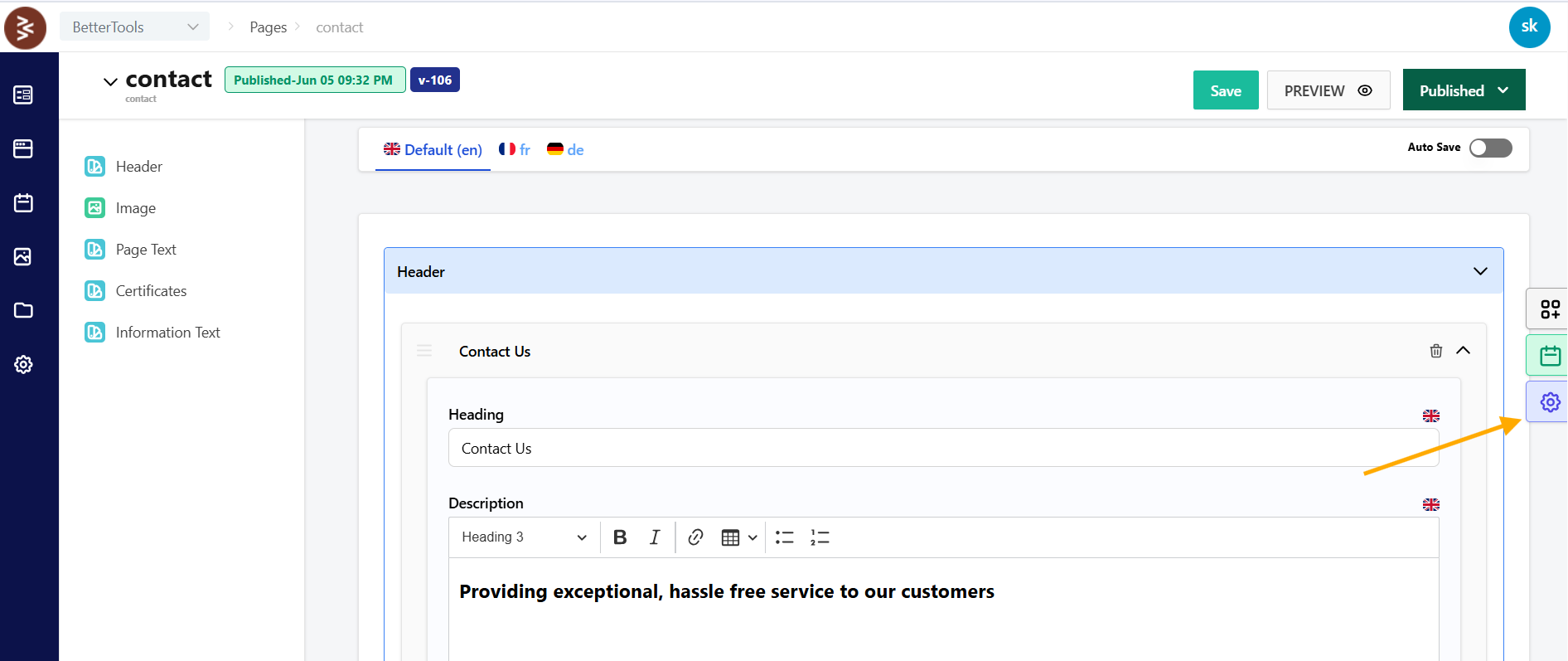
Step 3: Configure SEO Metadata
Complete the SEO form with the following fields:
- Meta Title: Enter the page’s title for search engines (e.g., "Summer Collection 2025 | Brand Name"), ideally 50–60 characters for optimal display.
- Meta Description: Provide a brief summary for search results (e.g., "Explore our 2025 Summer Collection with premium apparel."), keeping it within 150–160 characters.
- Meta Keywords: List relevant keywords for indexing (e.g., "summer apparel, fashion, 2025 collection"), separated by commas.
- Canonical URL: Specify the preferred URL to avoid duplicate content issues, using a text input for absolute URLs. The form validates inputs for character limits and URL formatting.
Step 4: Save Settings
Click Save to apply the SEO settings. The changes are immediately reflected in the page’s metadata, enhancing its search engine visibility and indexing accuracy.
Best Practices
- Craft concise, keyword-rich Meta Titles and Descriptions for higher click-through rates.
- Use unique Meta Keywords for each page to improve indexing specificity.
- Set Canonical URLs for pages accessible via multiple URLs (e.g., with/without trailing slashes).
- Regularly audit SEO metadata to align with campaign goals and keyword trends.
- Test page visibility in search engine results after saving changes.