
Scheduling via Release Calendar
Overview
The Release Calendar provides a visual interface for content teams to plan and schedule page updates, offering a centralized view of upcoming releases. This feature is ideal for coordinating large-scale campaigns, product launches, or seasonal events, with automated publication for precise timing.
Step 1: Access the Release Calendar
Log in to the BetterCommerce admin dashboard and navigate to Content > Release Calendar. The calendar view loads, displaying scheduled releases marked by date.
Step 2: Create a New Release
Double-click a date (e.g., 2025-06-15) on the calendar to open the scheduling form. A modal or inline form appears for configuring release details.

Step 3: Enter Release Metadata
Complete the scheduling form with the following fields:
- Release Name: Enter a descriptive name (e.g., "Black Friday Special").
- Start Time: Select a date/time for publication (e.g., 2025-06-15 09:00 IST) using the date/time picker.
- Description: Add notes or details (e.g., "Launch new product pages for summer collection") in the textarea.
- Optional End Time: Choose an expiry date/time, if applicable, using the date/time picker.
- Storefront Scope: Select specific storefronts or regions from a dropdown for multi-storefront setups. The form validates inputs, ensuring the start time is in the future.
Step 4: Assign Pages to the Release
Select pages for the release using a dropdown or search field to choose from the Pages module. Optionally, specify a page version (e.g., latest draft) via a version selector dropdown. Assigned pages are linked to the release, queued for automatic publication at the start time.
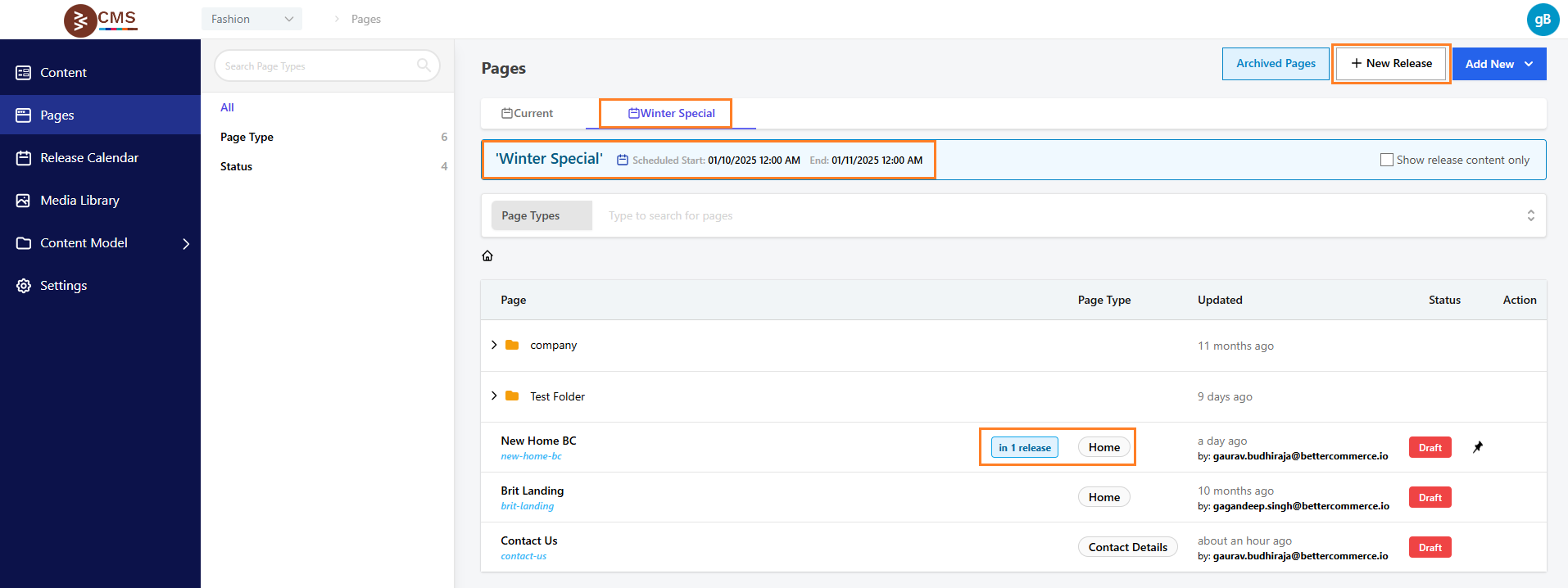
Step 5: Save and Automate
Click Save or Schedule to confirm the release. The system schedules the release, automatically publishing pages at the start time and reverting to the previous version if an end time is set. Verify the release in the calendar, where a visual marker displays details on hover or click, with options to edit or cancel.
Best Practices
- Use descriptive release names and descriptions for clarity.
- Schedule releases during low-traffic periods to minimize disruption.
- Test page content in preview mode before assigning to a release.
- Set end times for temporary campaigns to automate reversion.
- Coordinate with marketing teams to align releases with campaign timelines.