
Page Preview and Status Management
Overview
The BetterCommerce Content Management System (CMS) provides robust tools for previewing pages and managing their lifecycle through defined status assignments. These features ensure content accuracy across various devices and facilitate controlled progression from creation to publication. This section details the procedures for previewing pages and managing their status within the CMS.
Page Preview
The Preview function enables administrators to evaluate page rendering across multiple device resolutions (e.g., desktop, tablet, mobile), ensuring a consistent and optimized user experience.
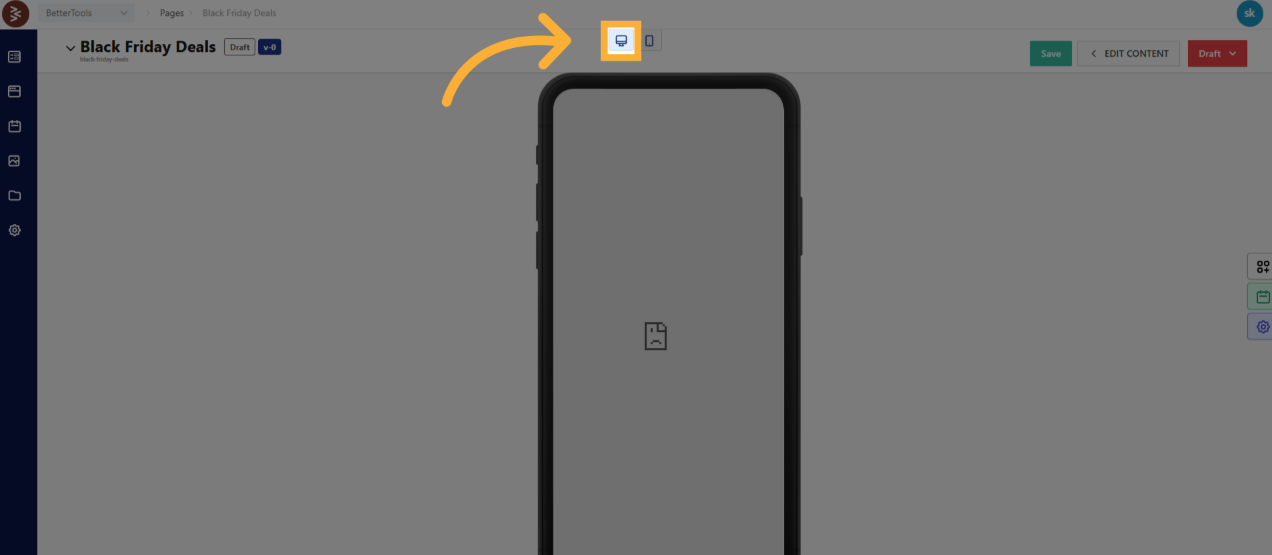
Procedure for Previewing a Page
-
Access the Page:
- Navigate to the Pages section in the CMS dashboard and select the desired page.
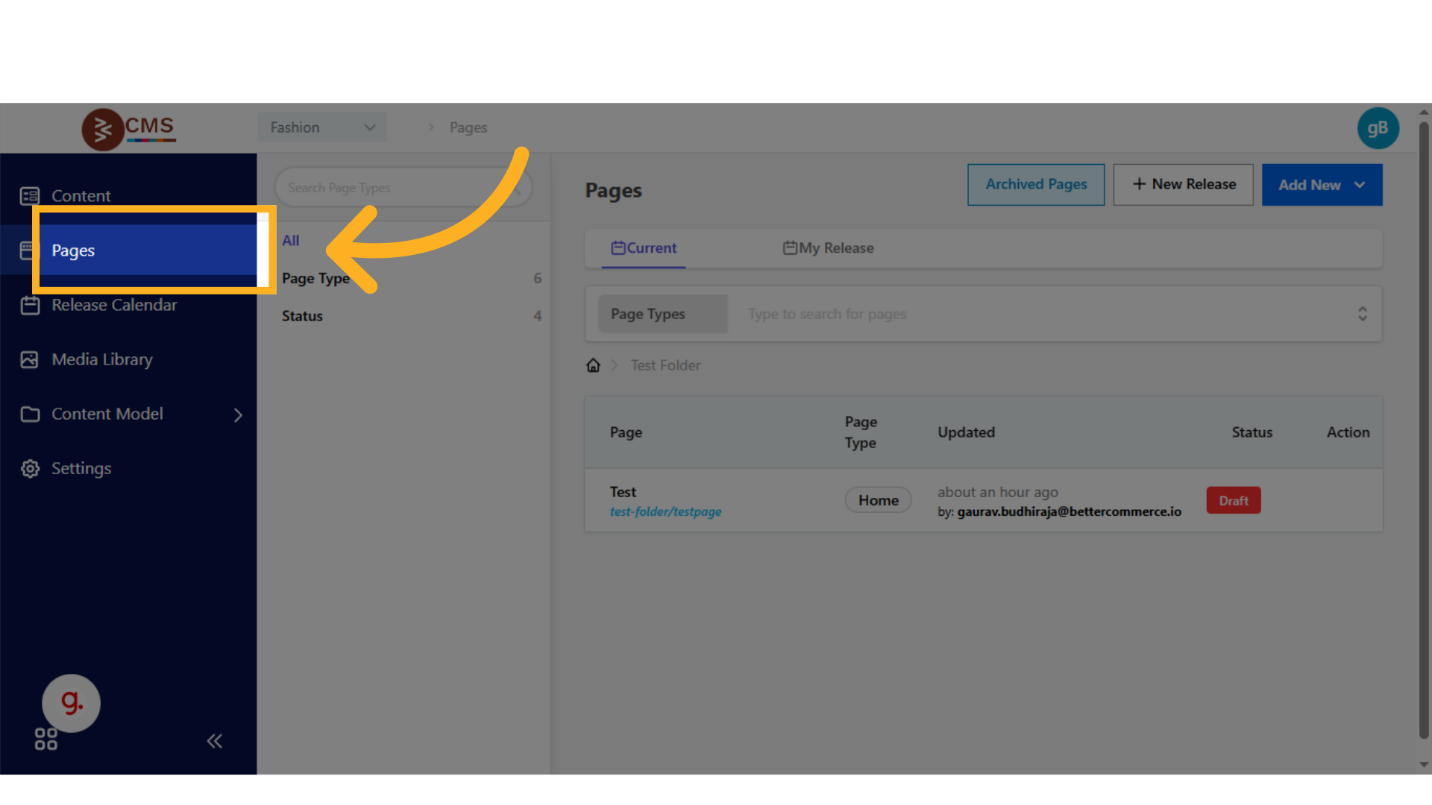
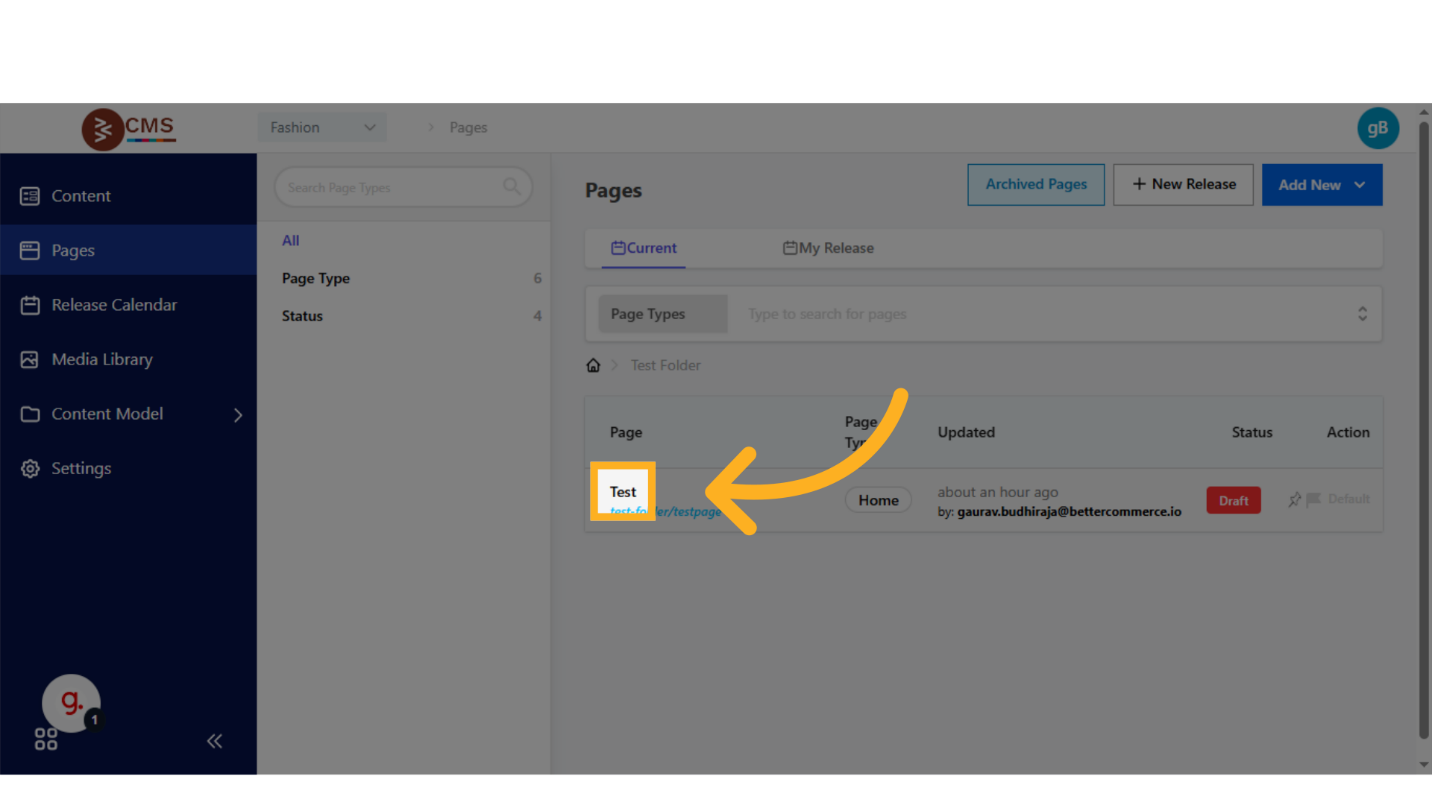
- Navigate to the Pages section in the CMS dashboard and select the desired page.
-
Initiate Preview:
- Click the Preview button to access the preview interface.
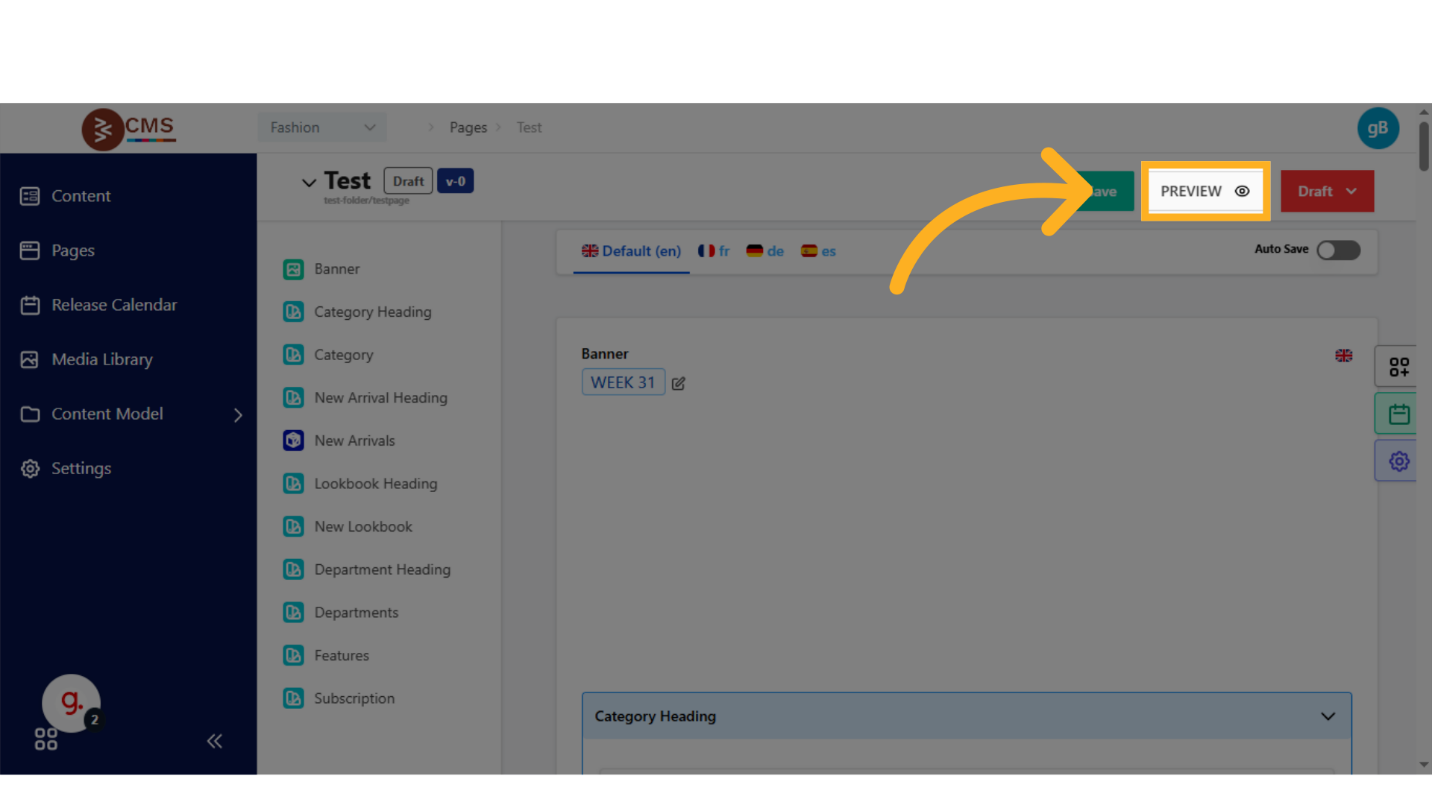
- Click the Preview button to access the preview interface.
-
Review Content:
- Inspect the layout, media, and interactive elements to ensure alignment with design specifications and brand guidelines.
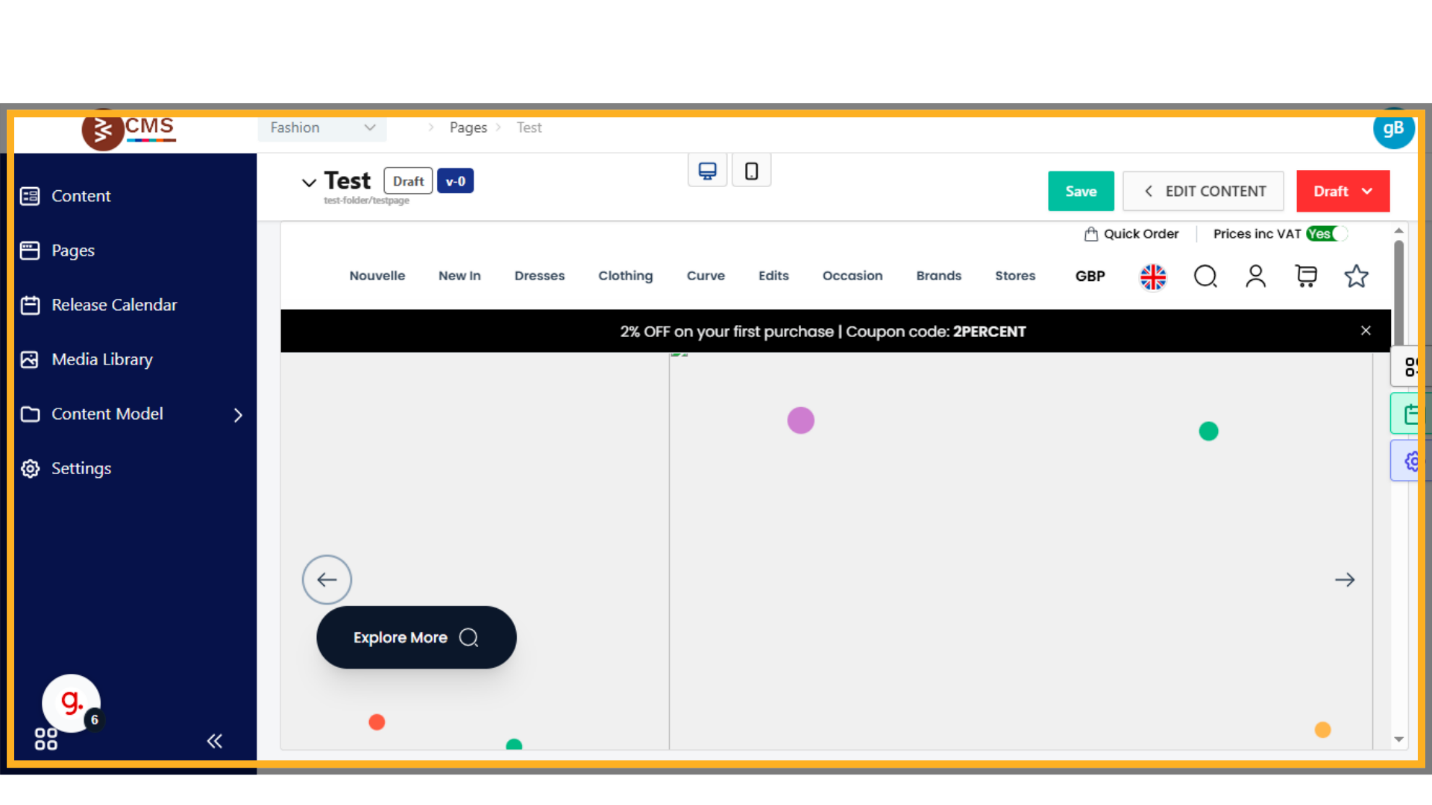
- Inspect the layout, media, and interactive elements to ensure alignment with design specifications and brand guidelines.
-
Iterate as Needed:
- Make necessary adjustments to content blocks or configurations based on preview feedback, then re-preview to validate changes or else click on Save if the preview is upto your expectations.
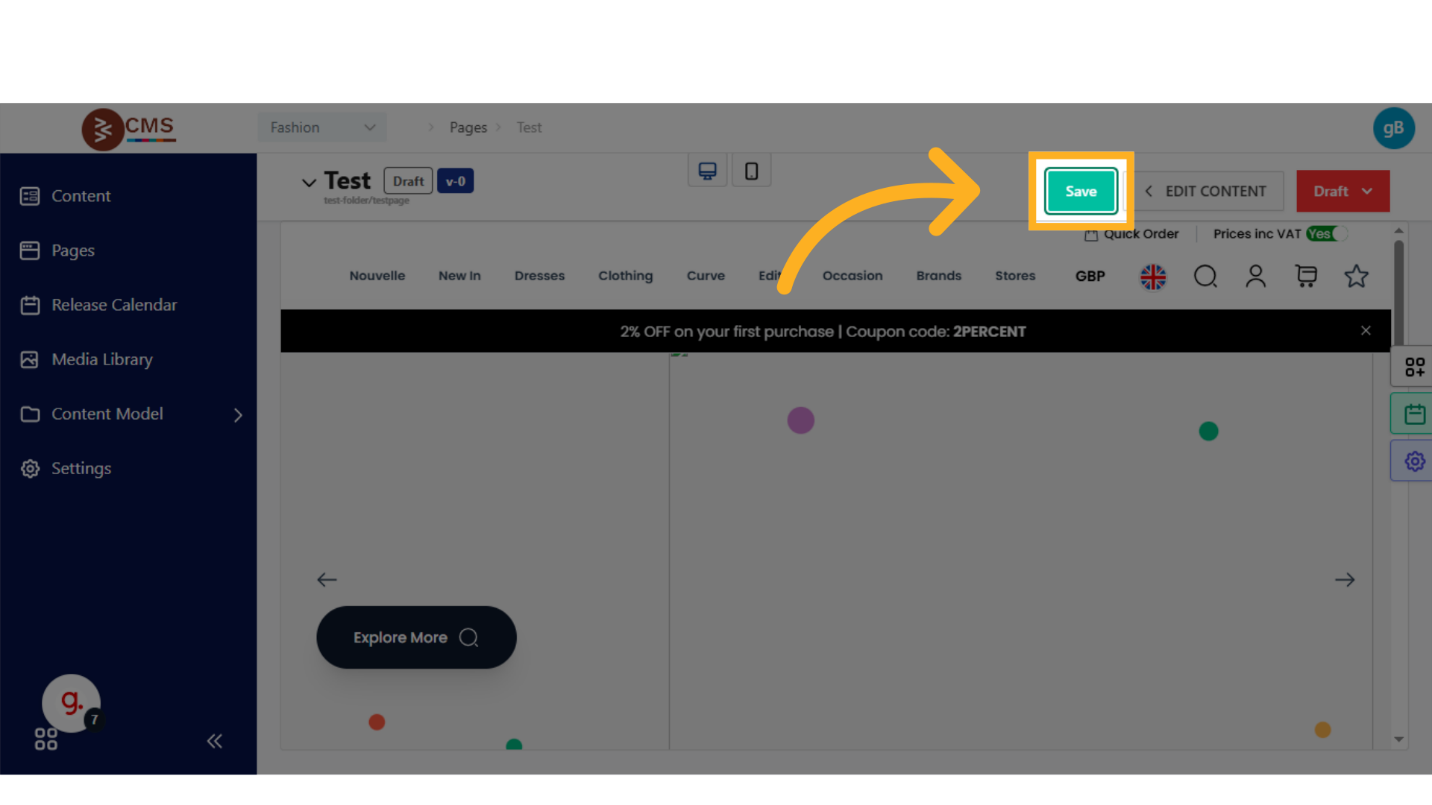
- Make necessary adjustments to content blocks or configurations based on preview feedback, then re-preview to validate changes or else click on Save if the preview is upto your expectations.
Best Practices for Preview
- Cross-Device Testing: Test across all available devices to ensure responsive design compliance.
- Content Accuracy: Verify that text, images, and dynamic elements render correctly and are functional.
- Stakeholder Review: Share preview links with stakeholders for collaborative feedback before publication.
Page Status Management
The CMS supports a structured content lifecycle through assignable page statuses, enabling clear tracking and management of content from creation to archiving.
Available Statuses
-
Draft:
- Indicates content is under active creation or revision.
- Suitable for pages in development or undergoing iterative updates.
-
Review:
- Marks content as ready for feedback or approval from designated stakeholders.
- Used to facilitate quality assurance and compliance checks.
-
Publish:
- Denotes content that is live and accessible on the frontend to end users.
- Ensures the page is fully approved and optimized for public viewing.
-
Archive:
-
Represents content that is no longer publicly visible but retained for reference or potential reactivation.
-
Ideal for outdated or seasonal content.
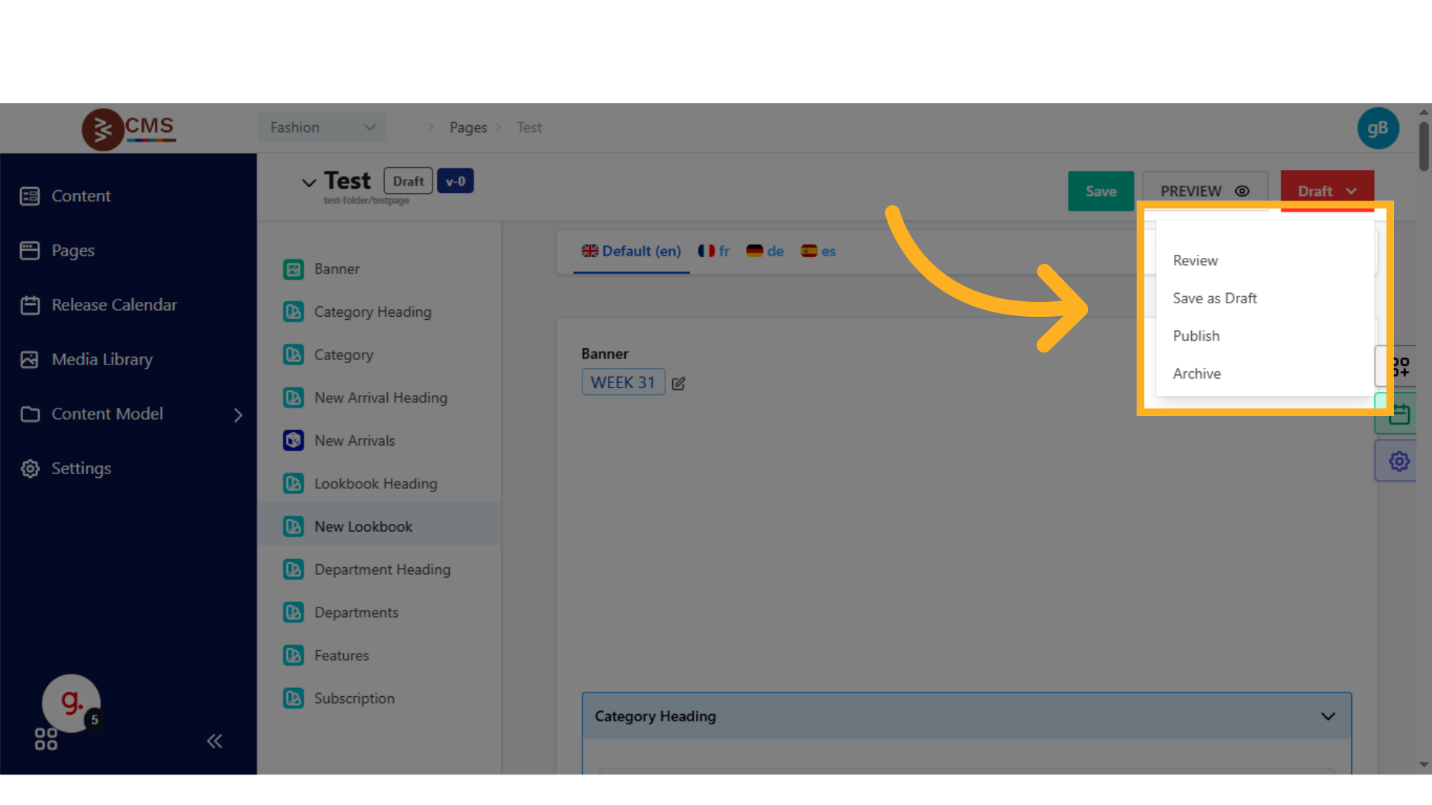
-
Procedure for Managing Page Status
-
Access the Page Settings:
- From the Pages section, open the target page in edit mode.
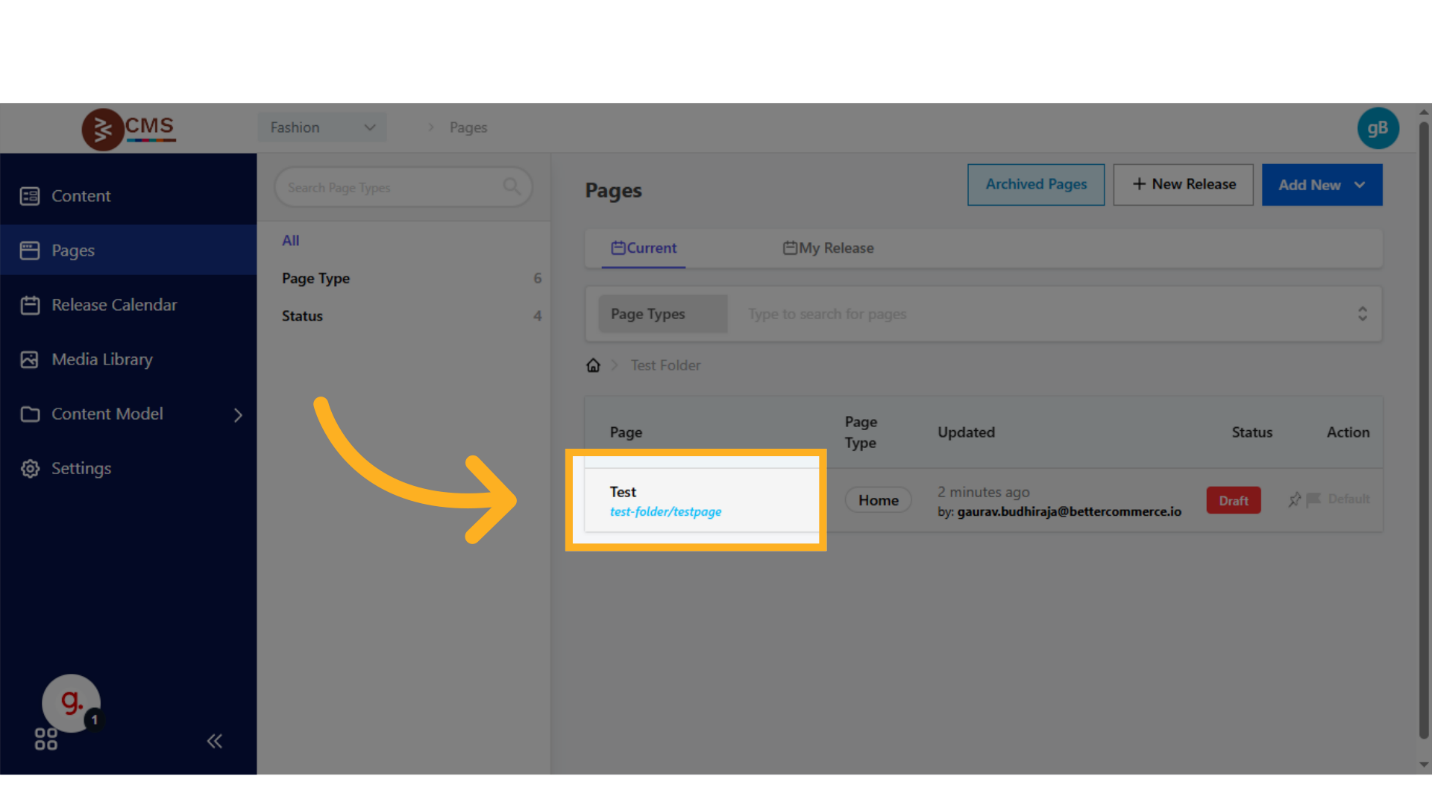
- From the Pages section, open the target page in edit mode.
-
Assign Status:
- Locate the Status field in the page settings and select the appropriate status (Draft, Review, Published, or Archived) from the dropdown menu.
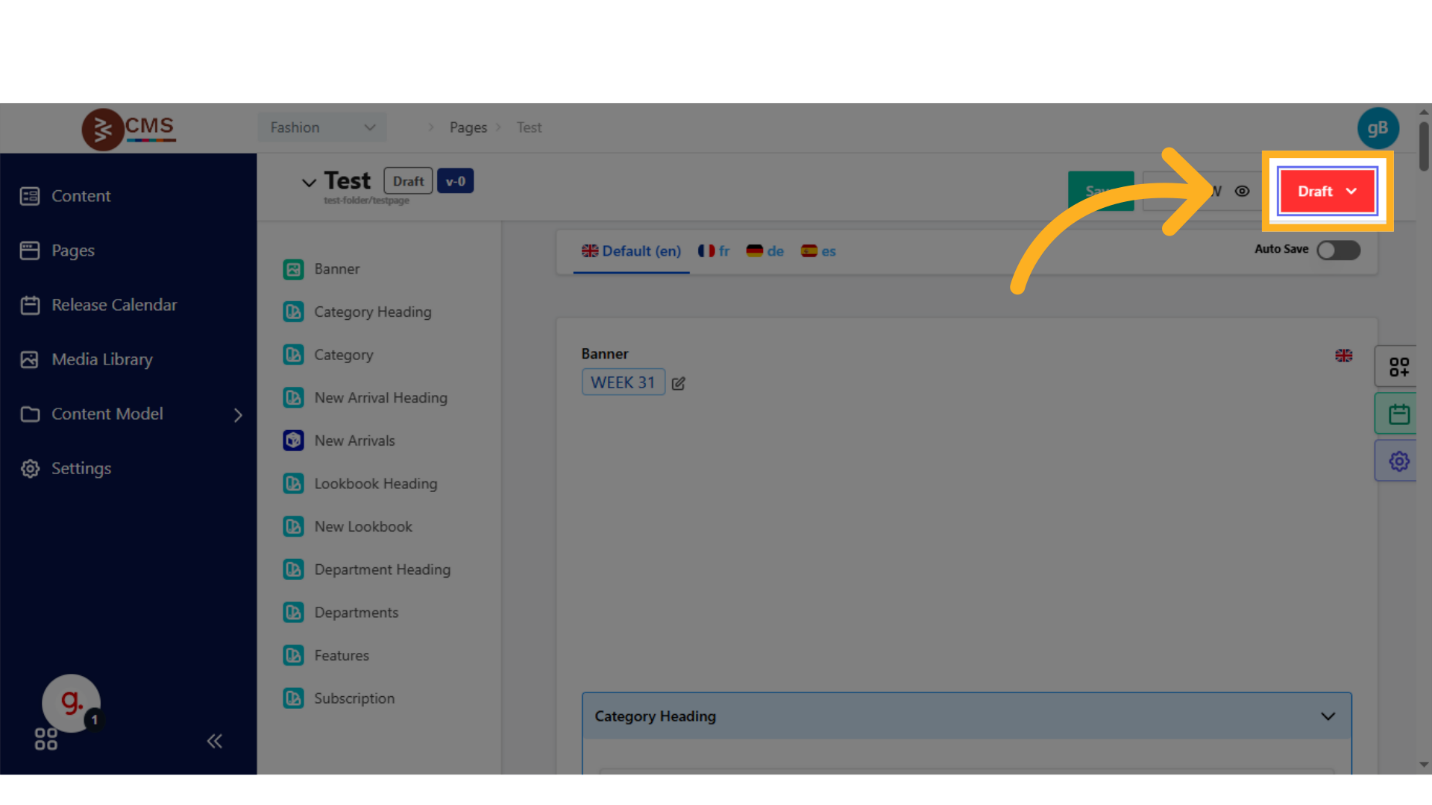
- Locate the Status field in the page settings and select the appropriate status (Draft, Review, Published, or Archived) from the dropdown menu.
-
Save Changes:
- Click Save to update the page status in the CMS database. In the below example, status is selected as Review.
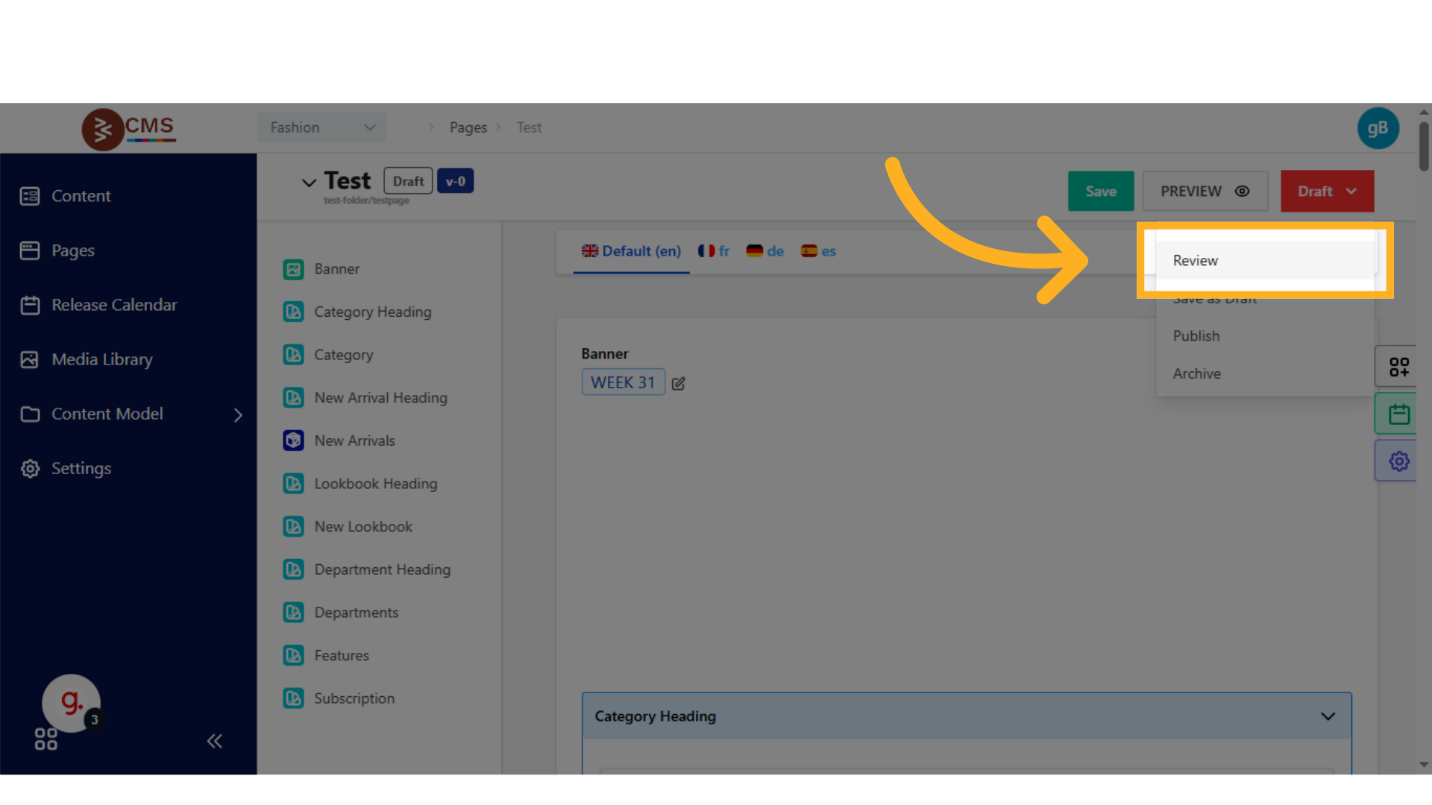
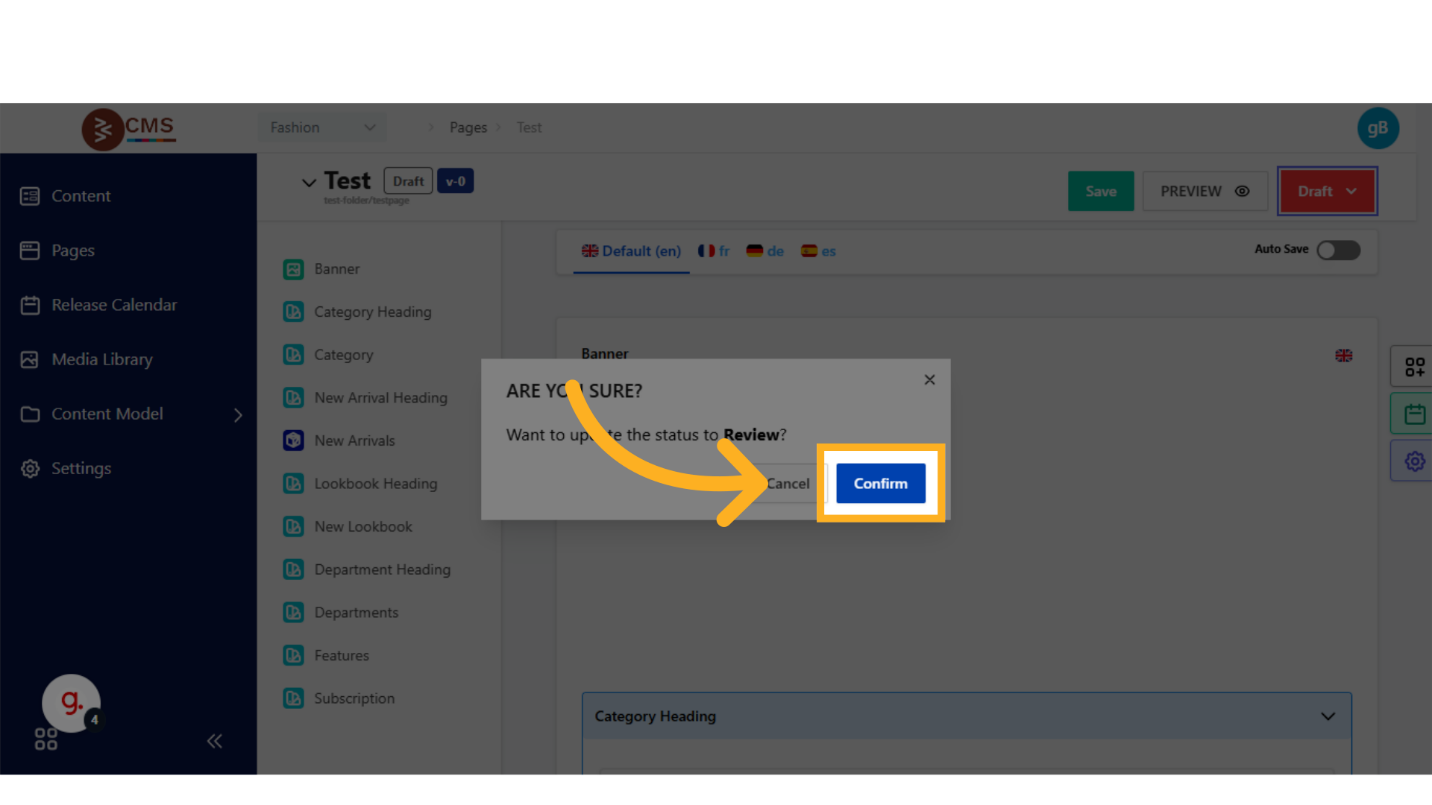
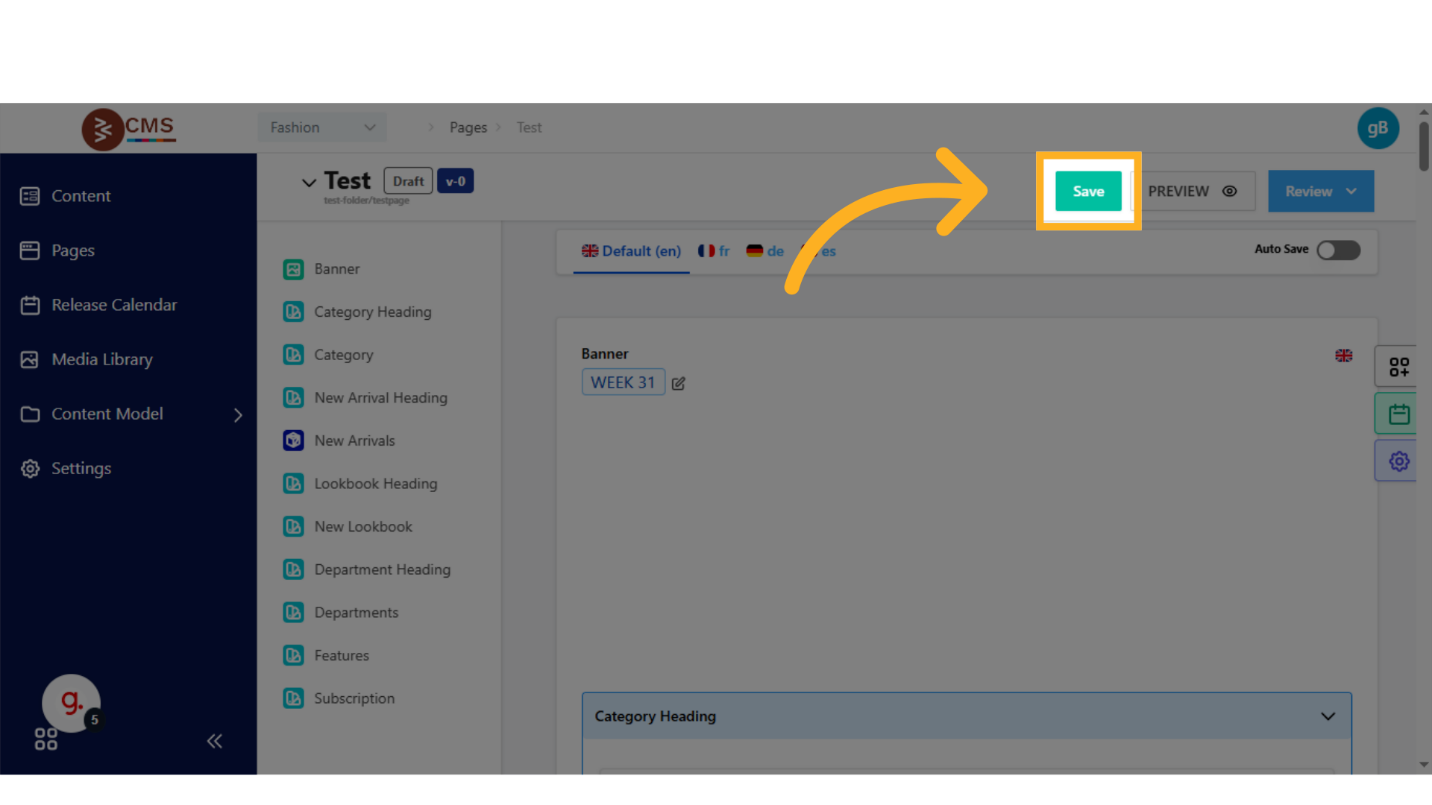
- Click Save to update the page status in the CMS database. In the below example, status is selected as Review.
-
Monitor Status Transitions:
- Track status changes through the CMS audit log (if enabled) to maintain accountability and traceability.
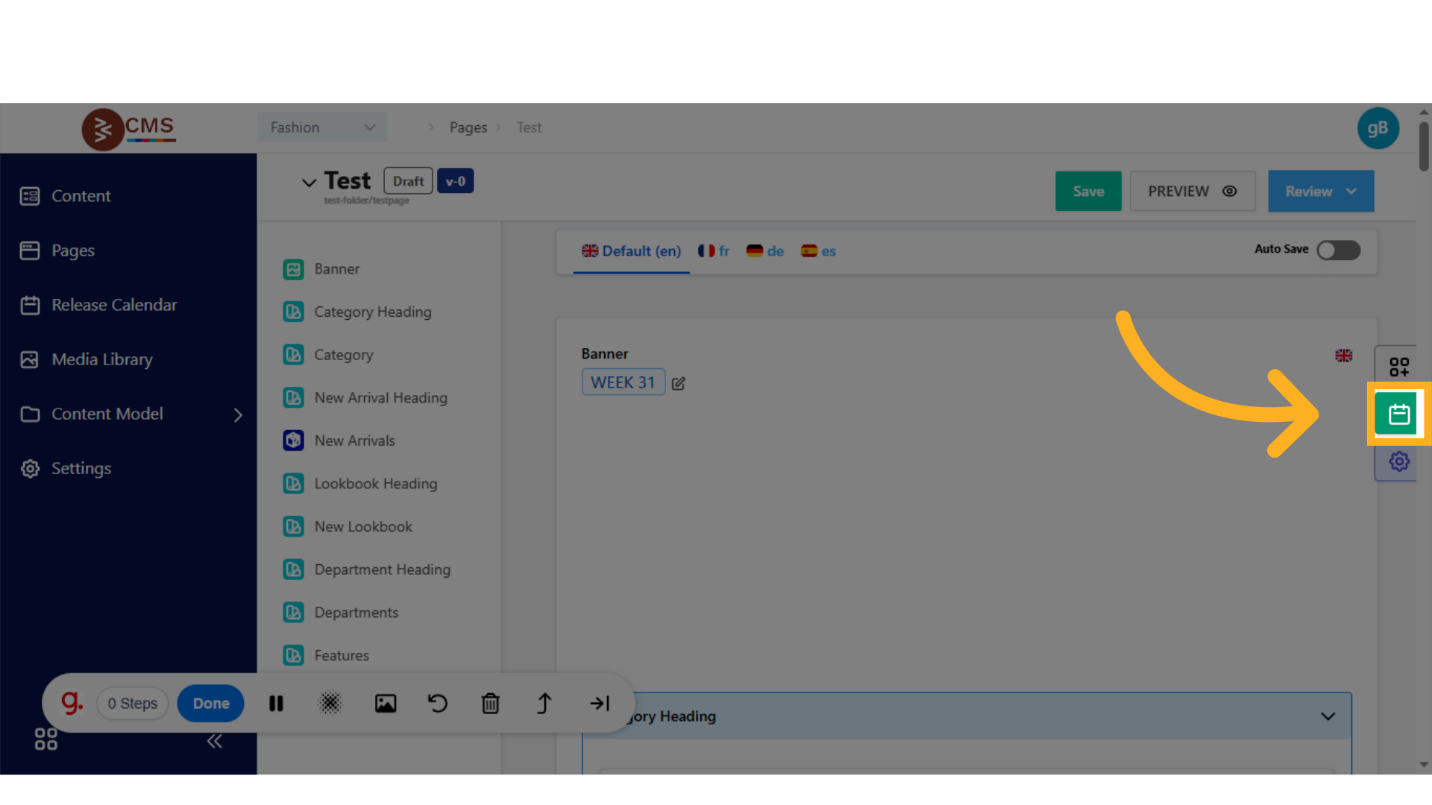
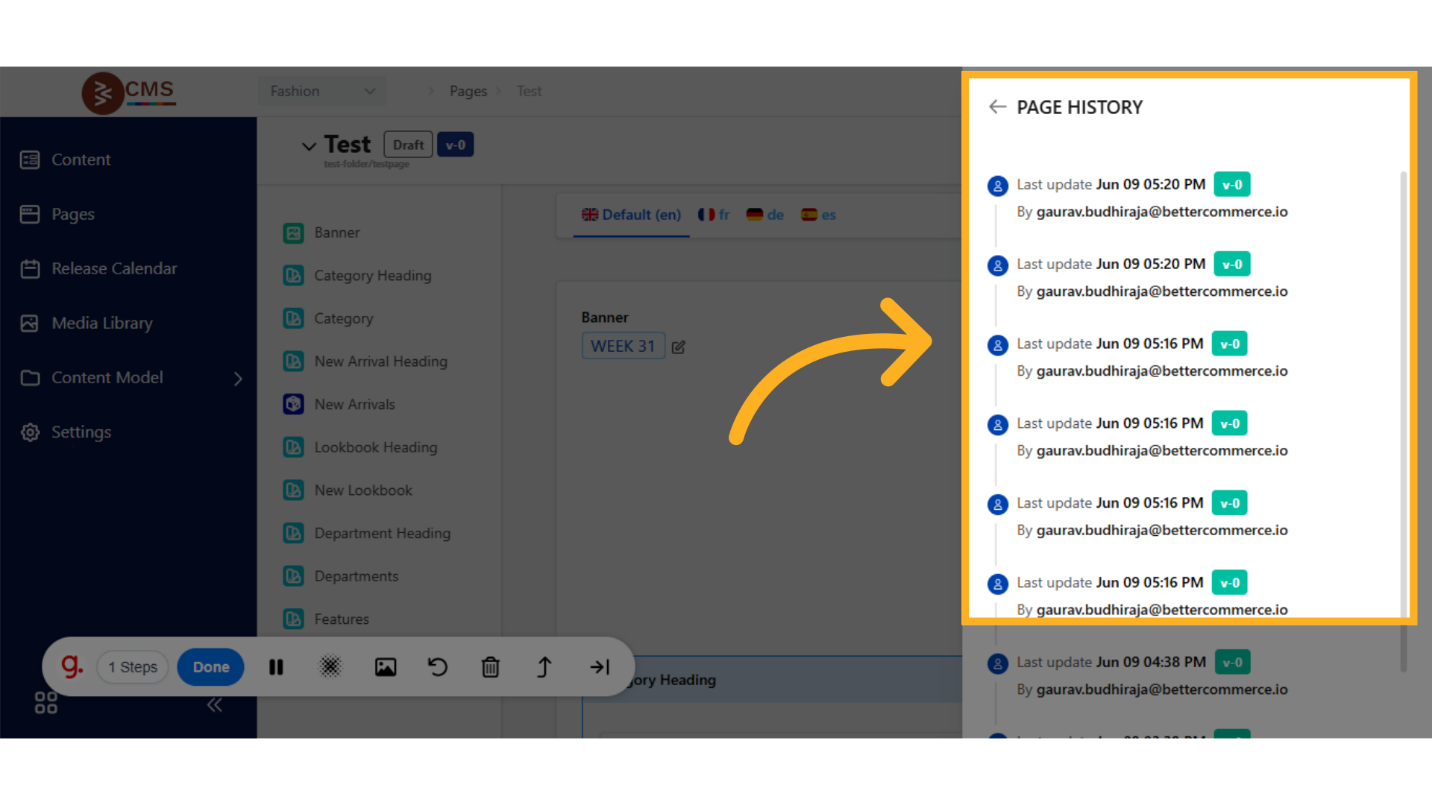
- Track status changes through the CMS audit log (if enabled) to maintain accountability and traceability.
Best Practices
- Clear Workflow Definitions: Establish clear protocols for transitioning between statuses to streamline content approvals.
- Audit Tracking: Enable audit logging to record status changes for compliance and governance purposes.
- Timely Archiving: Regularly review and archive outdated content to maintain a clean and efficient CMS environment.
- Stakeholder Communication: Notify relevant team members when transitioning pages to Review or Publish statuses to ensure alignment.