
Scheduling from Pages Menu
Overview
Scheduling from the Pages menu offers a page-centric approach to planning content releases, allowing editors to define schedules directly from the Pages module. This method is ideal for managing individual page updates or small-scale releases, with automation for publication and reversion.
Step 1: Access the Pages Section
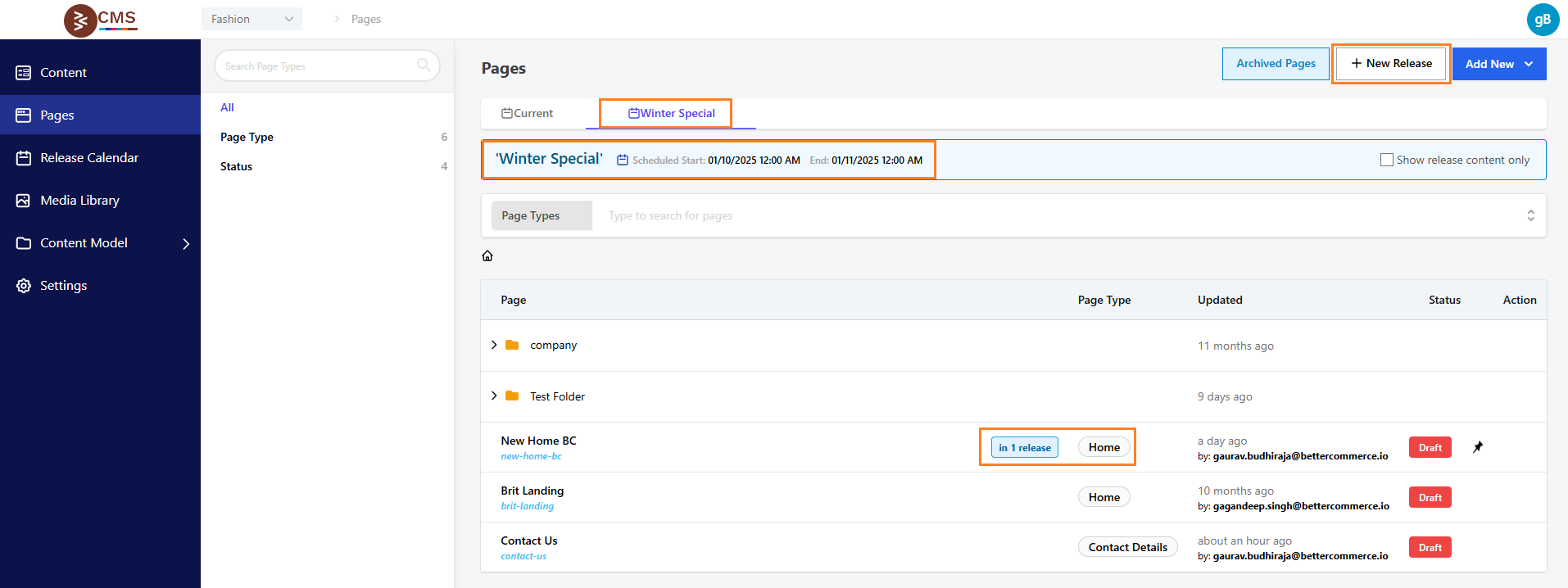
Navigate to Content > Pages in the admin dashboard. The Pages Management page loads, displaying a table of pages with columns for Page Title, Page Type, Status, and Actions.
Step 2: Create a New Release
Click New Release, typically located at the top-right of the Pages Management interface. A form opens for defining release details.
Step 3: Define Release Details
Complete the release form with the following fields:
- Release Name: Enter a descriptive name (e.g., "Winter Sale Homepage Update").
- Start Date/Time: Select a publication date/time (e.g., 2025-12-01 08:00 IST) using the date/time picker.
- Optional End Date/Time: Choose an expiry date/time, if applicable, using the date/time picker.
- Storefront Scope: Select specific storefronts or regions from a dropdown. The form validates inputs to ensure proper formatting and future start times.
Step 4: Edit and Assign Pages
Select pages using a dropdown or search field, then edit content directly in the form’s Page Editor (e.g., rich media, PIM blocks) or link to existing drafts. Optionally, specify a page version via a version selector dropdown. Edited content is saved as part of the release, queued for publication.
Step 5: Save and Automate
Click Save or Schedule to confirm the release. The system schedules the release, automatically publishing pages at the start time and reverting to the previous version if an end time is set. Verify the release in the Pages section, where the page’s status or release details are displayed, with options to edit or cancel.
Best Practices
- Use clear, campaign-specific release names for tracking.
- Preview edited pages before scheduling to ensure accuracy.
- Set end times for temporary updates to automate reversion.
- Align release schedules with business goals (e.g., product launches).
- Monitor scheduled releases for conflicts with other updates.