
Localization and Multilingual Support
Overview
Localization and Multilingual Support in BetterCommerce CMS enables enterprises to deliver region-specific, translated content for global audiences. This feature supports multilingual websites by allowing editors to manage content across multiple languages within the same Page Editor, ensuring consistency in tone, branding, and functionality across locales.
Step 1: Access the Page Editor for Localization
- Navigate to Content > Pages in the admin dashboard.
- Open a page in the Page Editor by clicking Edit.
- UI Interaction: Select the desired page from the Pages Management table.
Step 2: Switch Between Languages
Use the language tabs at the top of the Page Editor to select a target language.
-
Fields:
- Language Tabs: Tabs or dropdown for configured languages (e.g.,
en-US,fr-FR).
- Language Tabs: Tabs or dropdown for configured languages (e.g.,
-
UI Interaction: Click a language tab (e.g.,
fr-FR) to switch.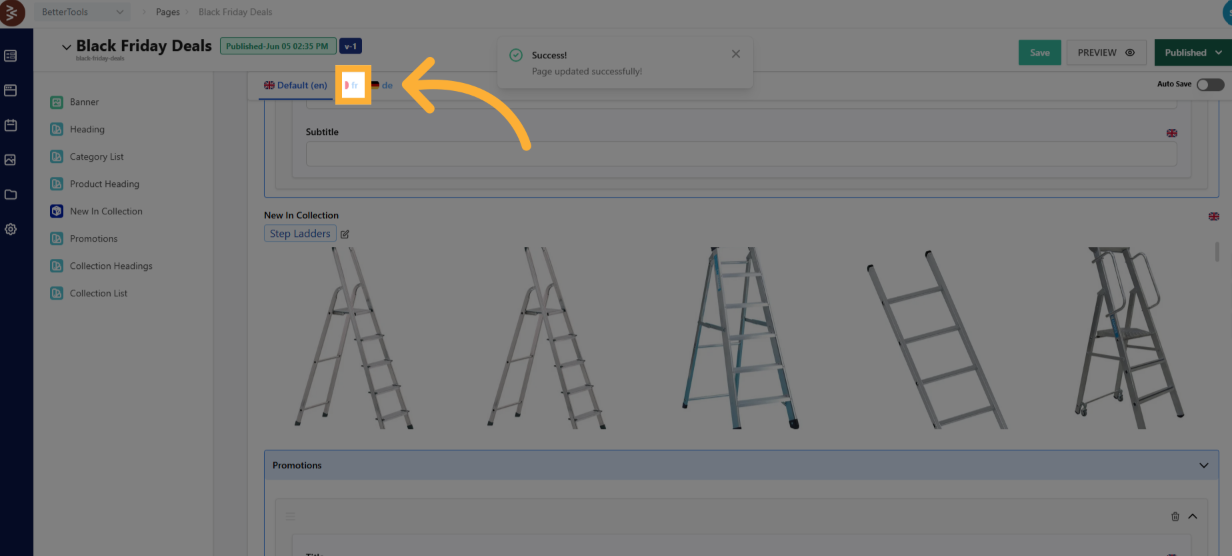
Step 3: Enter Translated Content
- Update fields with translated content for each language:
- Fields: Same as the Page Editor (e.g., rich media, embedded content, links, PIM blocks), but in the selected language.
- UI Interaction: Edit text, upload localized media, or reconfigure PIM blocks.
- Ensure consistency across locales by aligning tone, branding, and formatting.
Step 4: Publish Localized Pages
- Preview localized content.
- UI Interaction: Click Preview with the selected language.
- Save or publish:
- UI Administration: Click Save for the selected language or Publish to go live.
- Fields:
- Publish Scope: Select specific regions or storefronts.
- Language-Specific Schedule: Optional scheduling for localized content.
Best Practices
-
Use professional translation services for accuracy.
-
Test localized content for cultural appropriateness.
-
Maintain consistent branding across languages.
-
Optimize performance for multilingual pages with heavy media.
-
Configure fallback languages for untranslated content.