
Creating and Managing Pages
Overview
In the BetterCommerce Content Management System (CMS), pages function as versatile containers for digital assets, including web pages, mobile application screens, and other user-facing interfaces. The platform provides a streamlined, user-centric interface designed to facilitate efficient page creation and organization, enabling administrators to manage content with precision and scalability.
Creating a New Page
This section outlines the procedural steps for creating a new page within the BetterCommerce CMS, ensuring structured content management and seamless integration with the platform’s architecture.
Prerequisites
- Access Permissions: Ensure you have administrative or editor-level access to the CMS dashboard.
- Folder Structure: Familiarize yourself with the existing folder hierarchy or prepare to create a new folder for organizational purposes.
- Page Type Knowledge: Review available page types and their configurations.
Procedure
To create a new page, follow these steps:
-
Access the Pages Module:
- From the CMS dashboard, locate the Pages section in the left-hand navigation panel and click to access it.
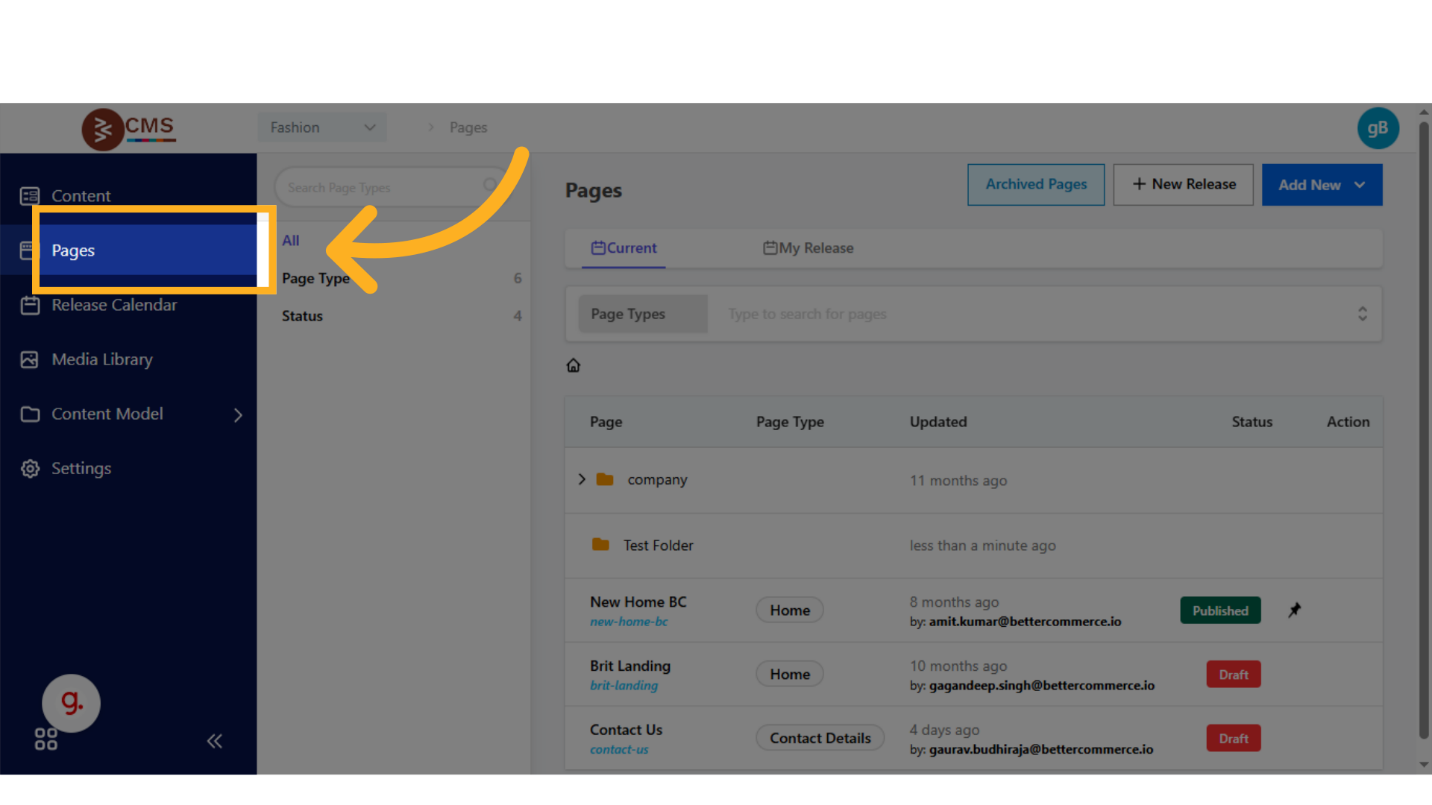
- From the CMS dashboard, locate the Pages section in the left-hand navigation panel and click to access it.
-
Initiate Page Creation:
- Click the Add New button and select Page from the dropdown menu to begin the page creation process.
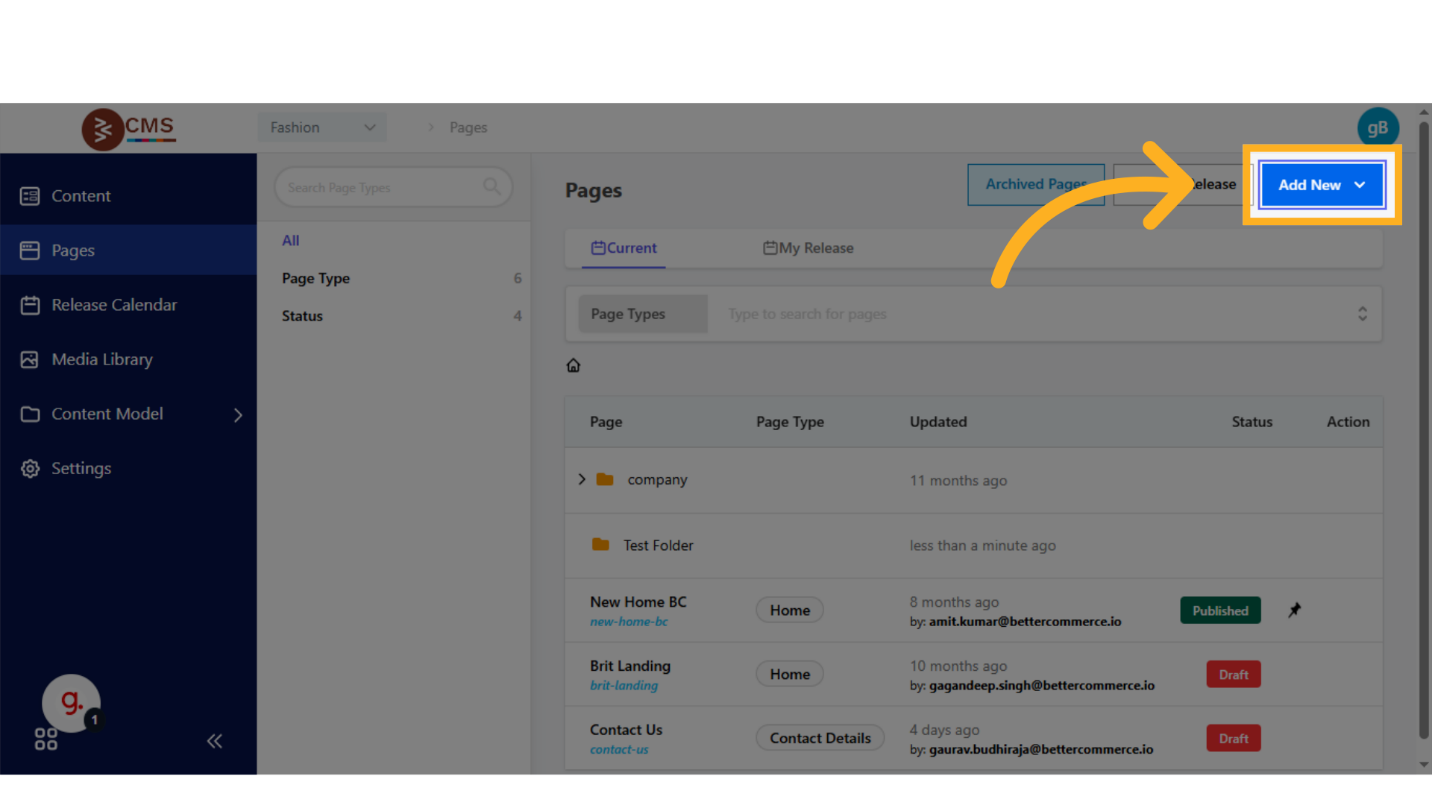
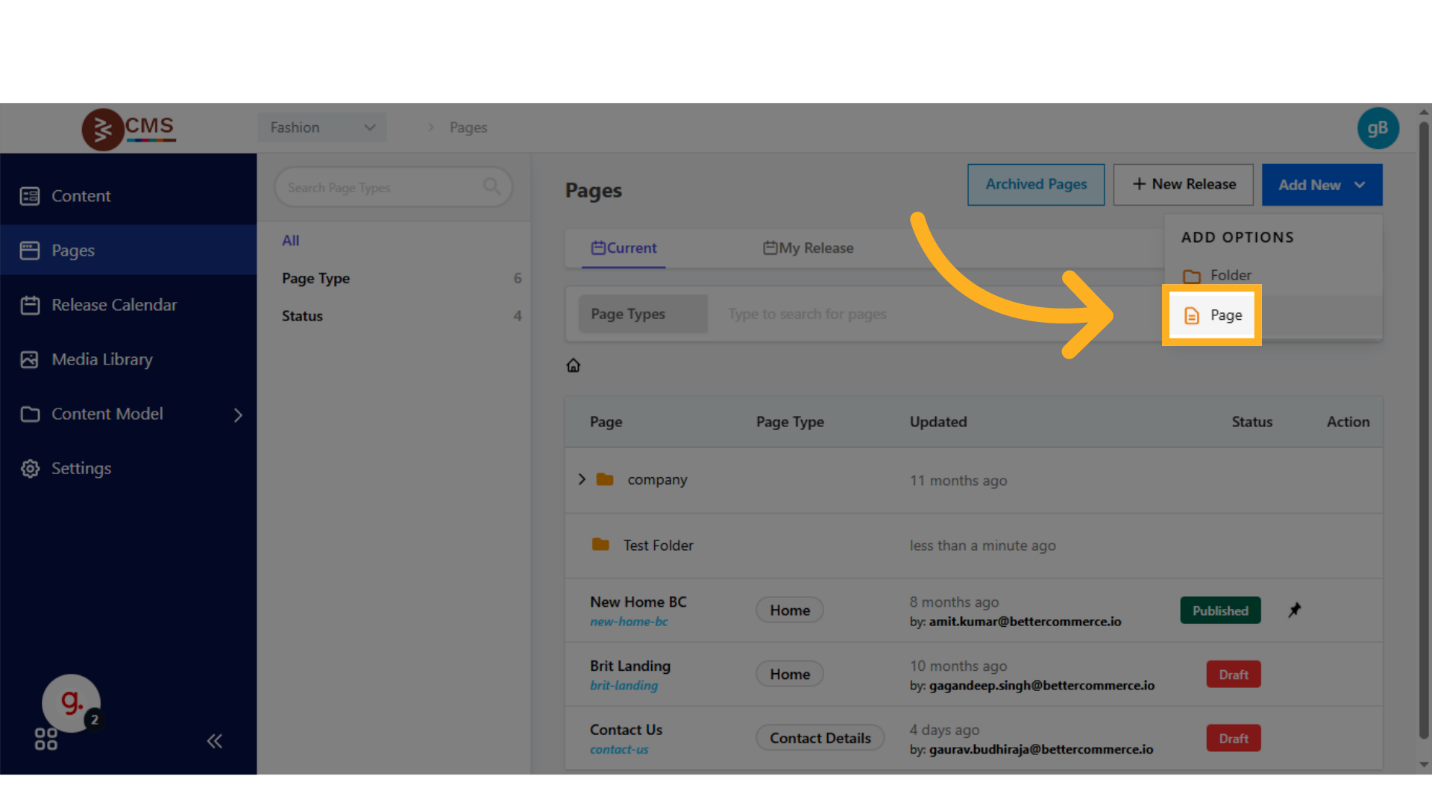
- Click the Add New button and select Page from the dropdown menu to begin the page creation process.
-
Organize Within Folder Structure:
- Select an existing folder to house the new page or create a new folder to maintain a hierarchical organization of content.
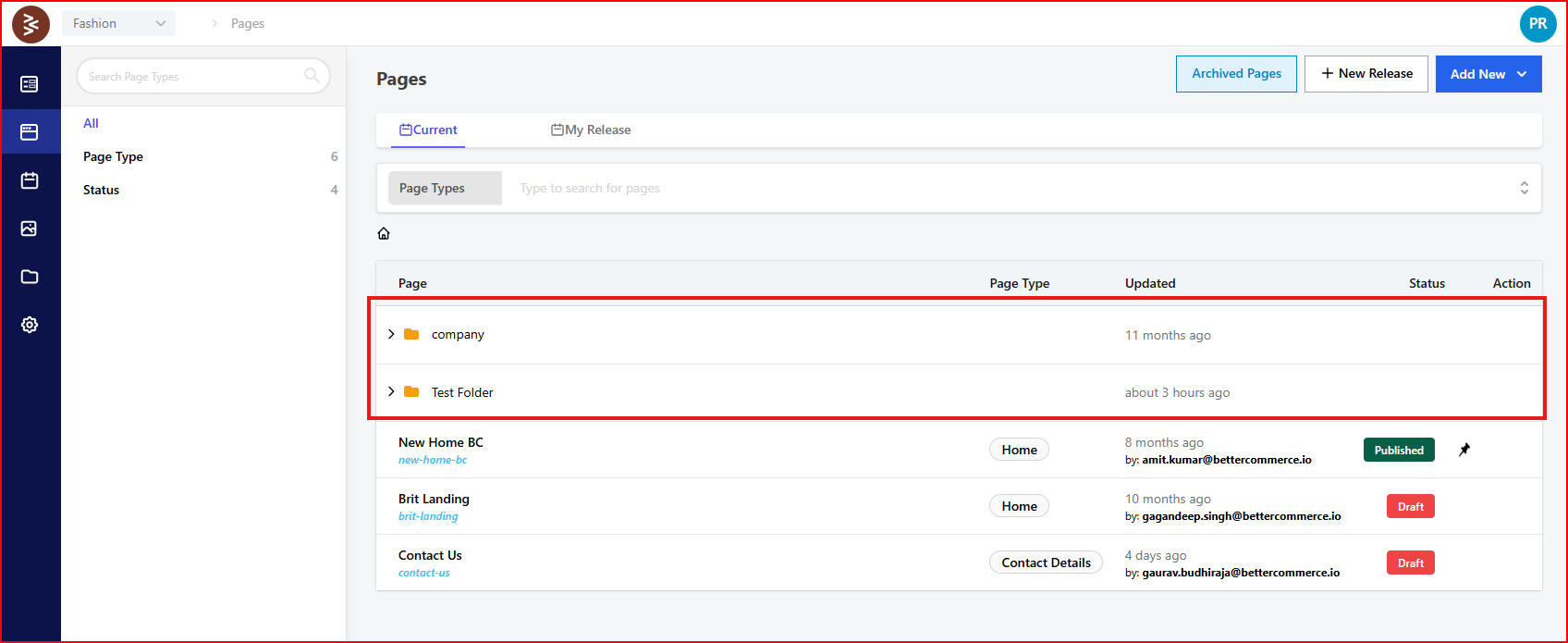
- Select an existing folder to house the new page or create a new folder to maintain a hierarchical organization of content.
-
Define Internal Page Name:
- Enter a unique Name for internal reference. This identifier is distinct from the user-facing title and should be descriptive for administrative purposes.
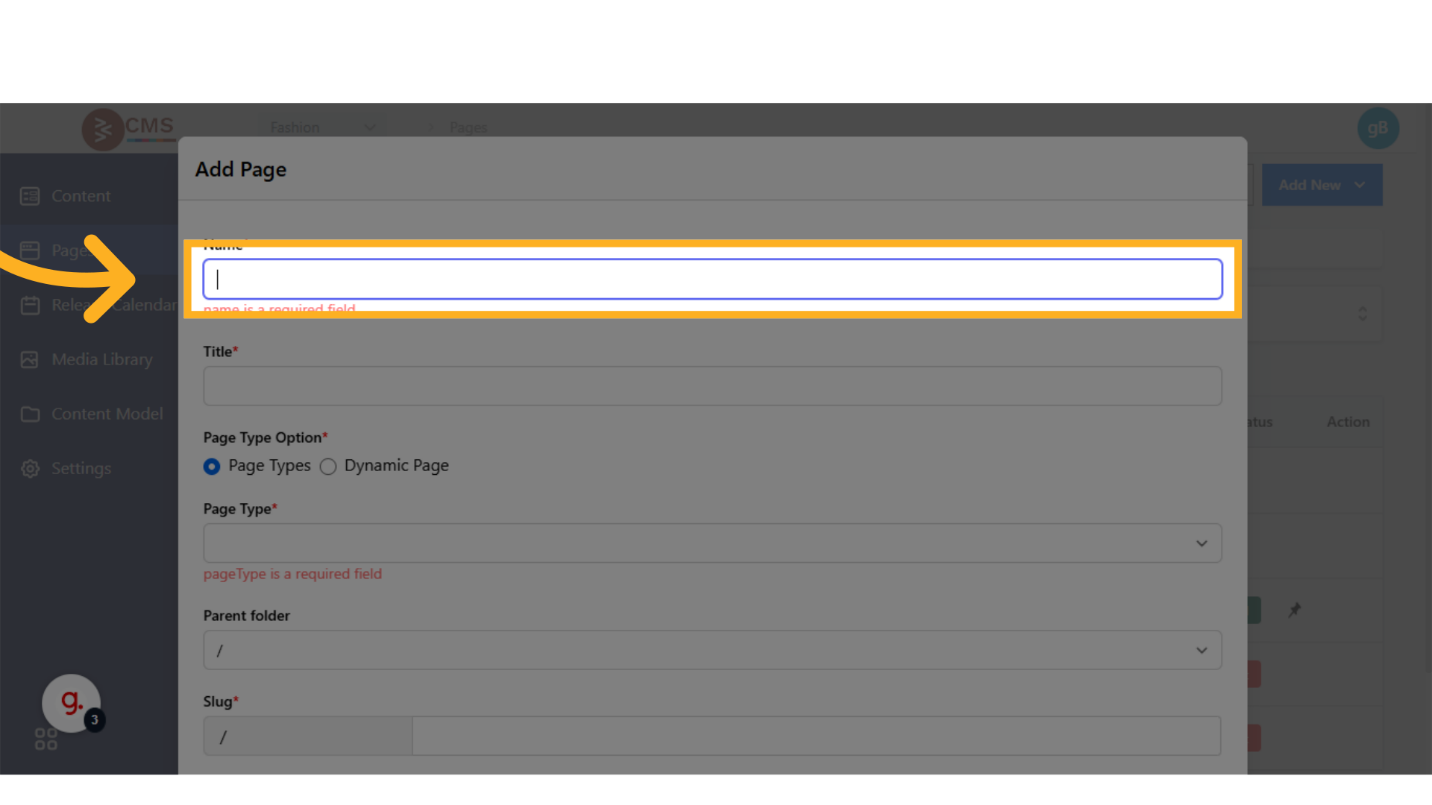
- Enter a unique Name for internal reference. This identifier is distinct from the user-facing title and should be descriptive for administrative purposes.
-
Specify Page Title:
- Provide a Title for the page, which will be displayed in browser tabs, search engine results, and other user-facing contexts.
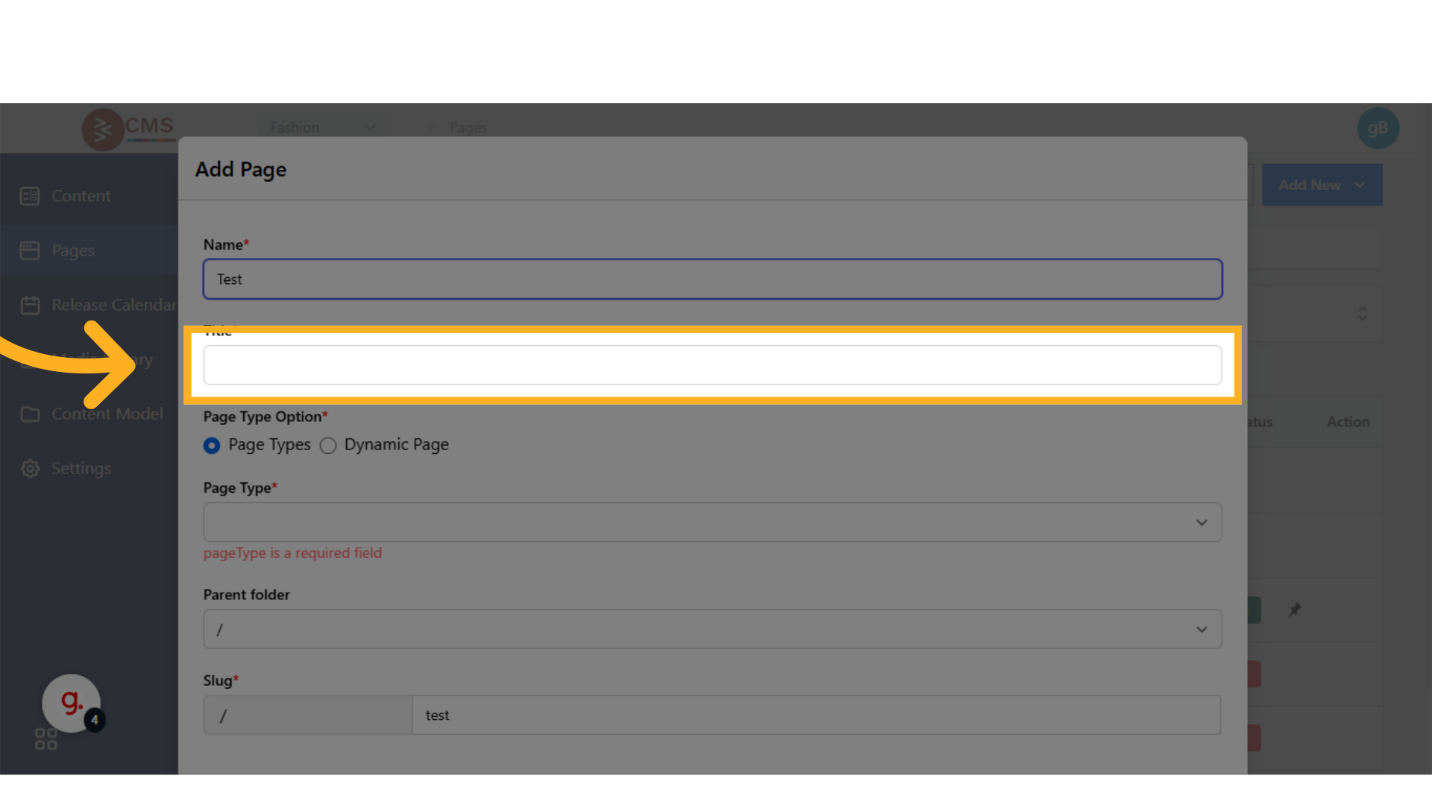
- Provide a Title for the page, which will be displayed in browser tabs, search engine results, and other user-facing contexts.
-
Select Page Type:
- Choose an appropriate Page Type to define the structural framework of the page.
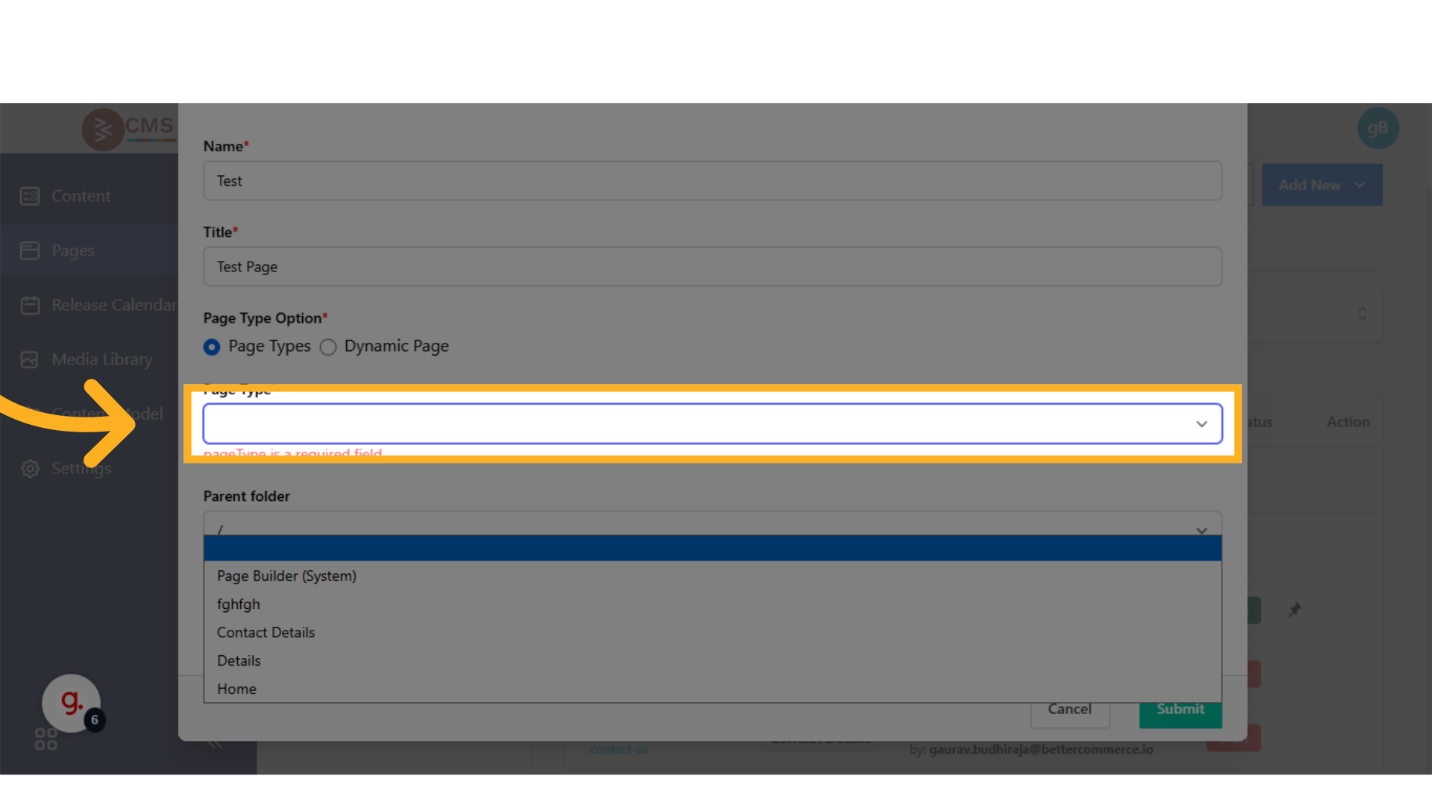
Important Note - Page Types determine the structural framework and layout configuration of your content. Each Page Type serves as a template that defines how content elements are organized and displayed. For detailed instructions on defining custom Page Types, refer to our Define Page Type Guide.
- Choose an appropriate Page Type to define the structural framework of the page.
-
Configure URL Path:
- Define the URL Path by specifying a folder path or using the root directory (
/). Ensure the path aligns with the site’s navigational structure.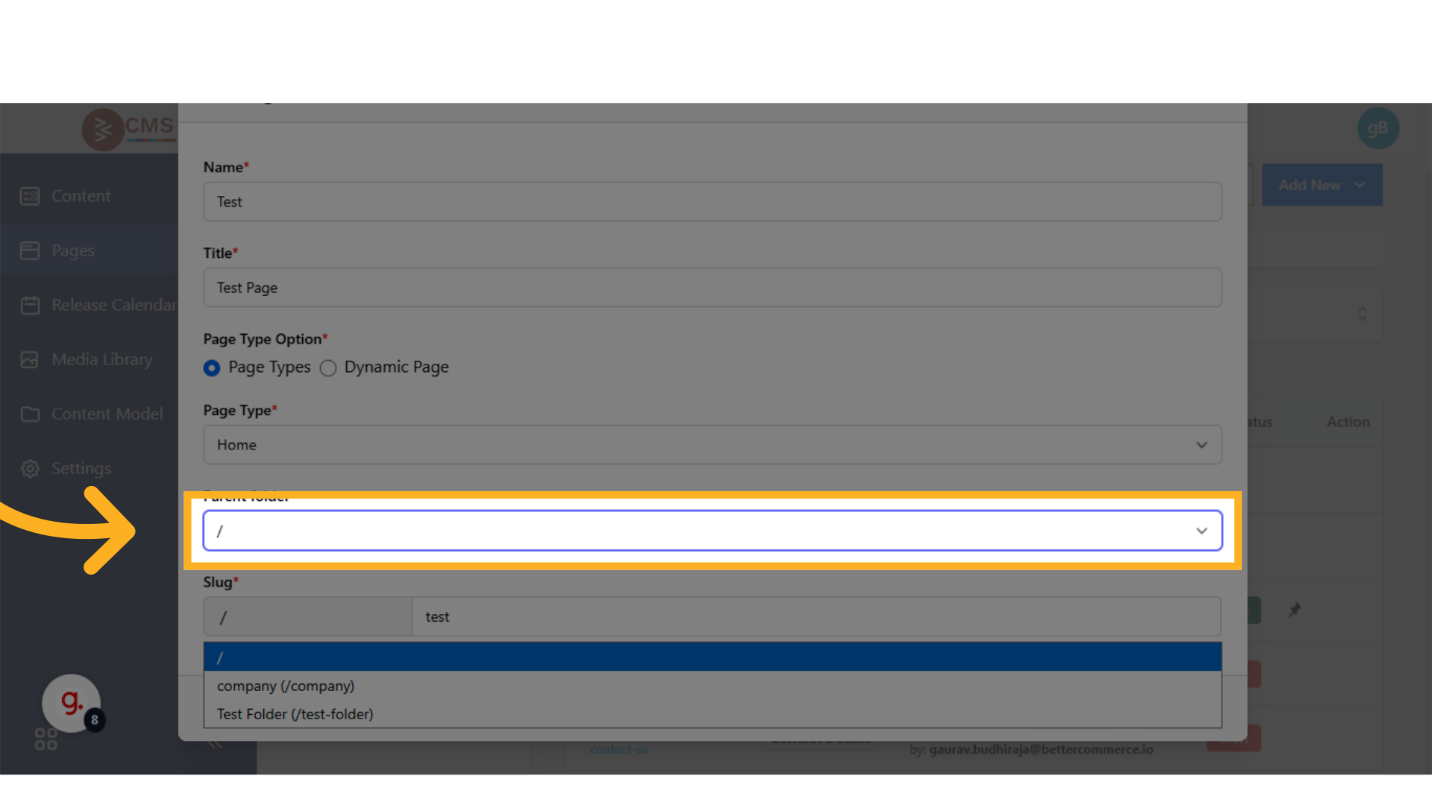
- Define the URL Path by specifying a folder path or using the root directory (
-
Assign SEO-Friendly Slug:
- Input an SEO-optimized slug (e.g.,
/winter-campaign) to enhance the page’s discoverability in search engine results.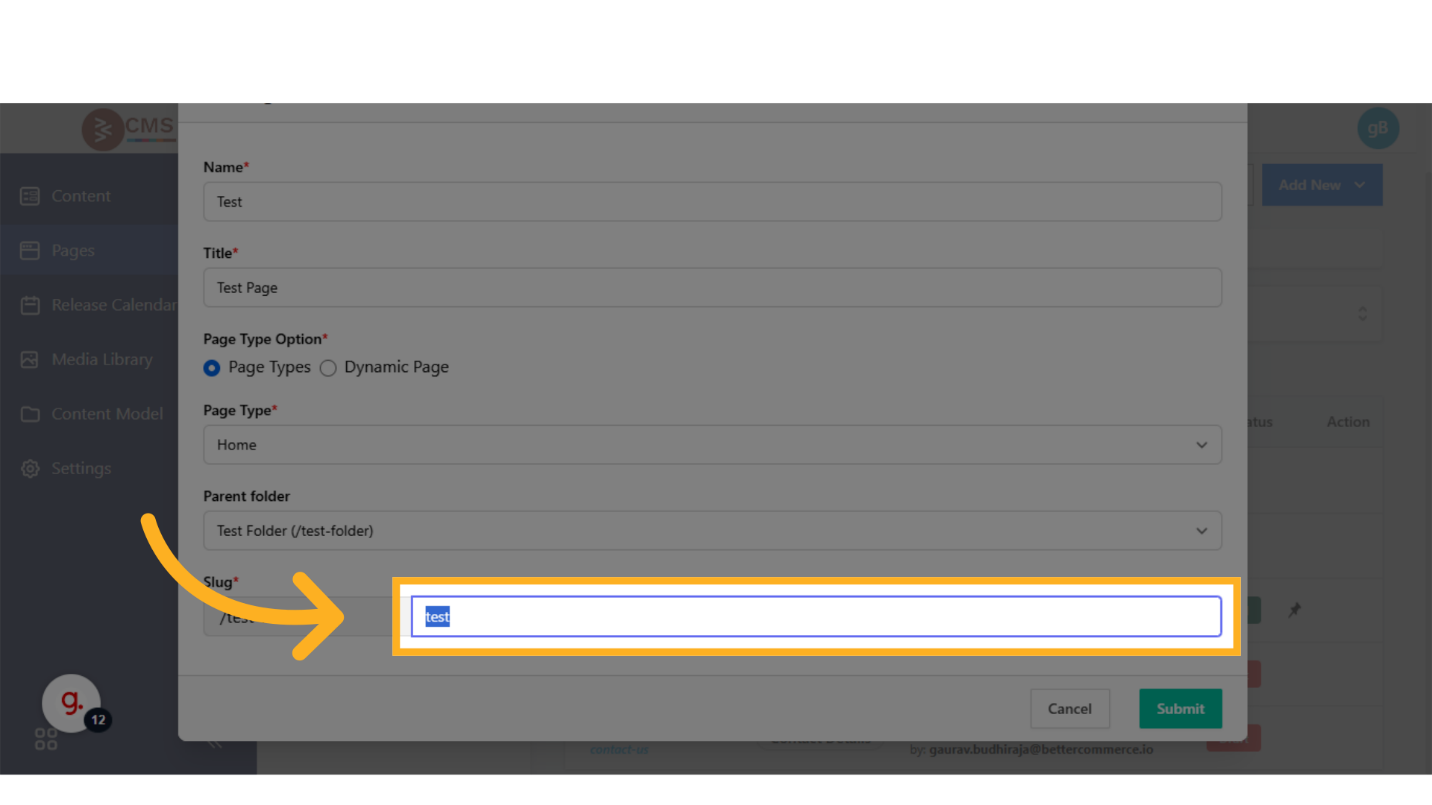
- Input an SEO-optimized slug (e.g.,
-
Save the Page:
- Click the Submit button to commit the page configuration and content to the CMS database.
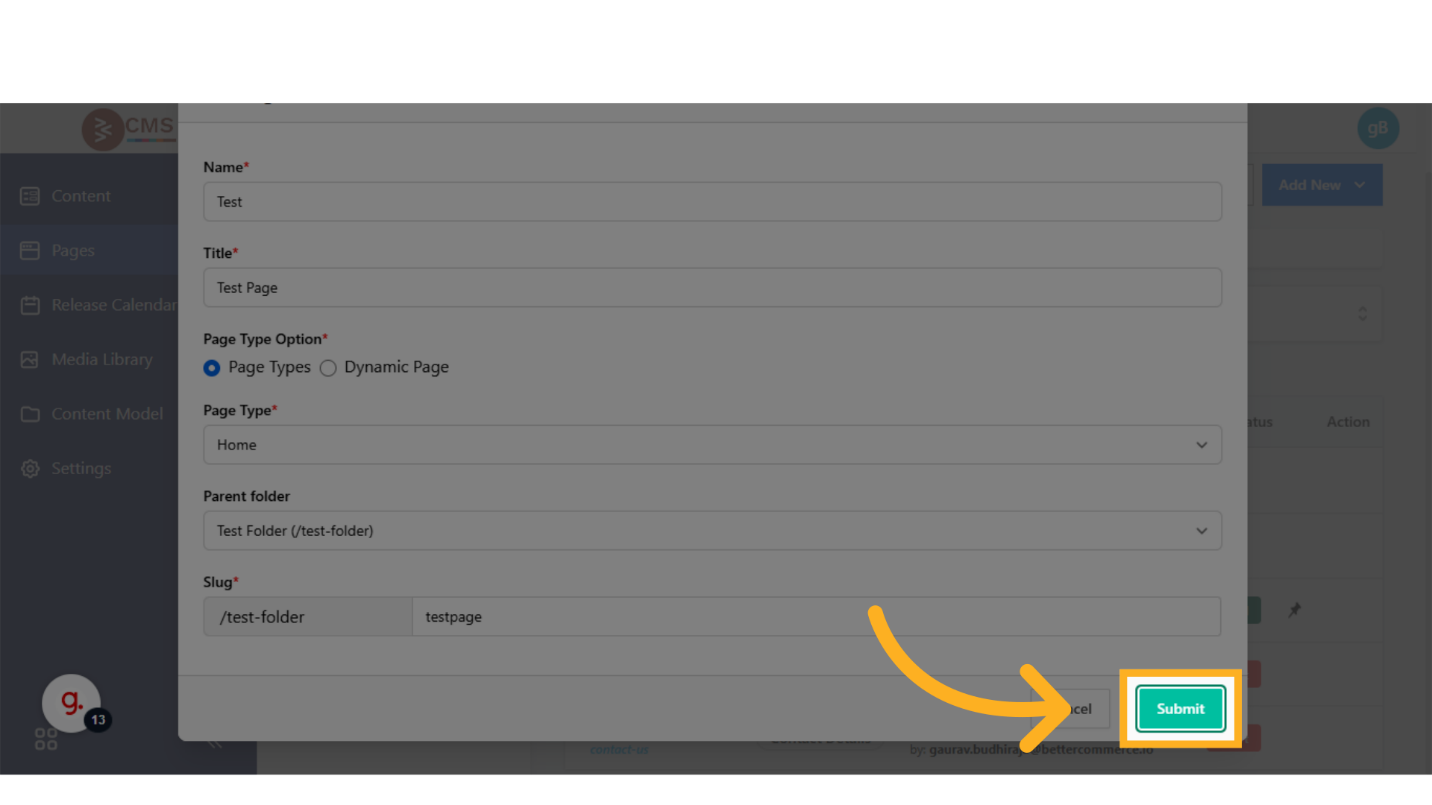
- Click the Submit button to commit the page configuration and content to the CMS database.
-
Page detail view
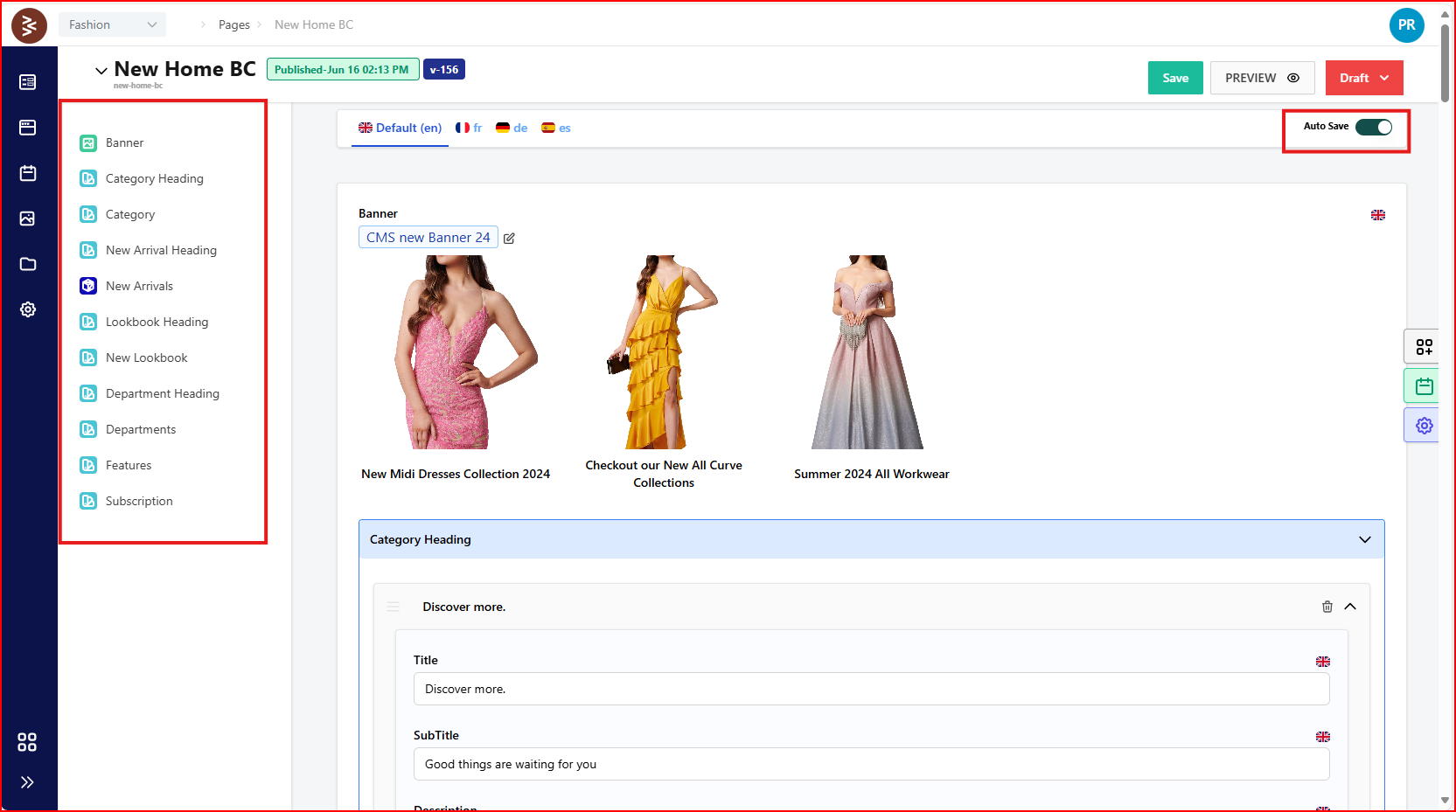
- On the left pane, you’ll now see the predefined elements of the selected Page Type and 11. Click into each element to add content (text, media, links, etc.)
Important Note - Toggle Auto-Save ON to avoid losing unsaved work.
Best Practices
- Consistency in Naming Conventions: Use clear and consistent naming for internal page names to streamline content management.
- SEO Optimization: Craft slugs that are concise, descriptive, and keyword-rich to improve search engine visibility.
- Content Validation: Before saving, review content blocks to ensure alignment with brand guidelines and functional requirements.