
Redirect Configuration in BetterCommerce
Overview
This document outlines the process for configuring URL redirects in the BetterCommerce platform, an API-first, headless commerce solution designed for enterprise retailers. Redirects are essential for maintaining a seamless user experience, preserving search engine optimization (SEO), and ensuring site integrity during URL changes. This guide details the types of redirects supported and provides step-by-step instructions for configuration, including manual entry and bulk imports via Excel files.
Redirect Types
Redirects in BetterCommerce ensure users and search engines are directed to the correct pages when URLs change. The platform supports two primary redirect types:
- 301 Permanent Redirect: Used for permanent URL changes, this redirect transfers SEO value (e.g., link equity) from the source URL to the destination URL. Ideal for deprecated pages or site restructuring.
- 302 Temporary Redirect: Used for temporary URL changes, this redirect does not impact SEO, as search engines retain the original URL’s indexing. Suitable for short-term redirects, such as during maintenance or A/B testing.
Note: Choose the redirect type carefully based on your use case. Incorrect usage (e.g., using a 302 for a permanent change) may result in SEO penalties or broken user flows.
Configuration Steps
Follow these steps to configure redirects in the BetterCommerce admin dashboard.
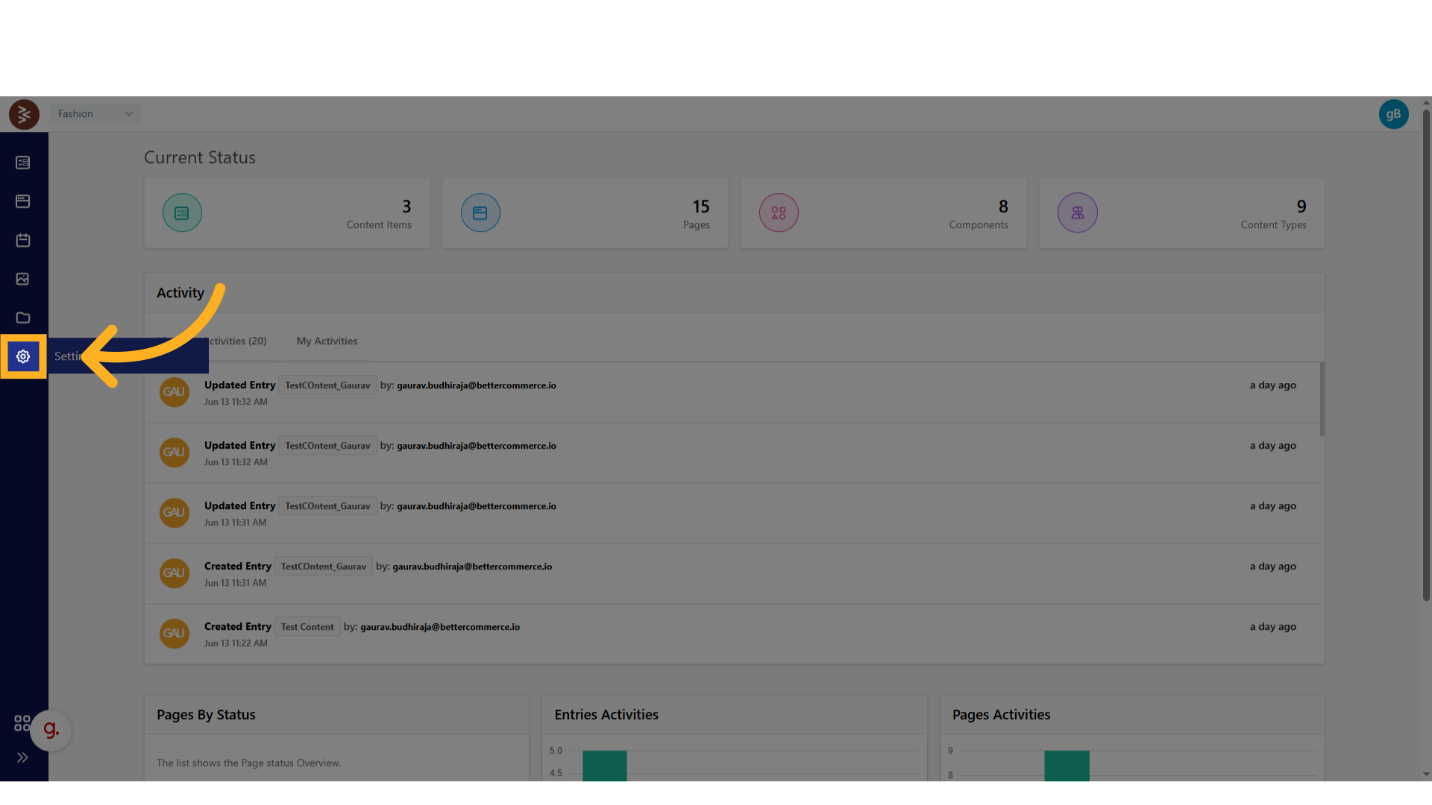
Step 1: Access Redirect Settings
- Log in to the BetterCommerce admin dashboard.
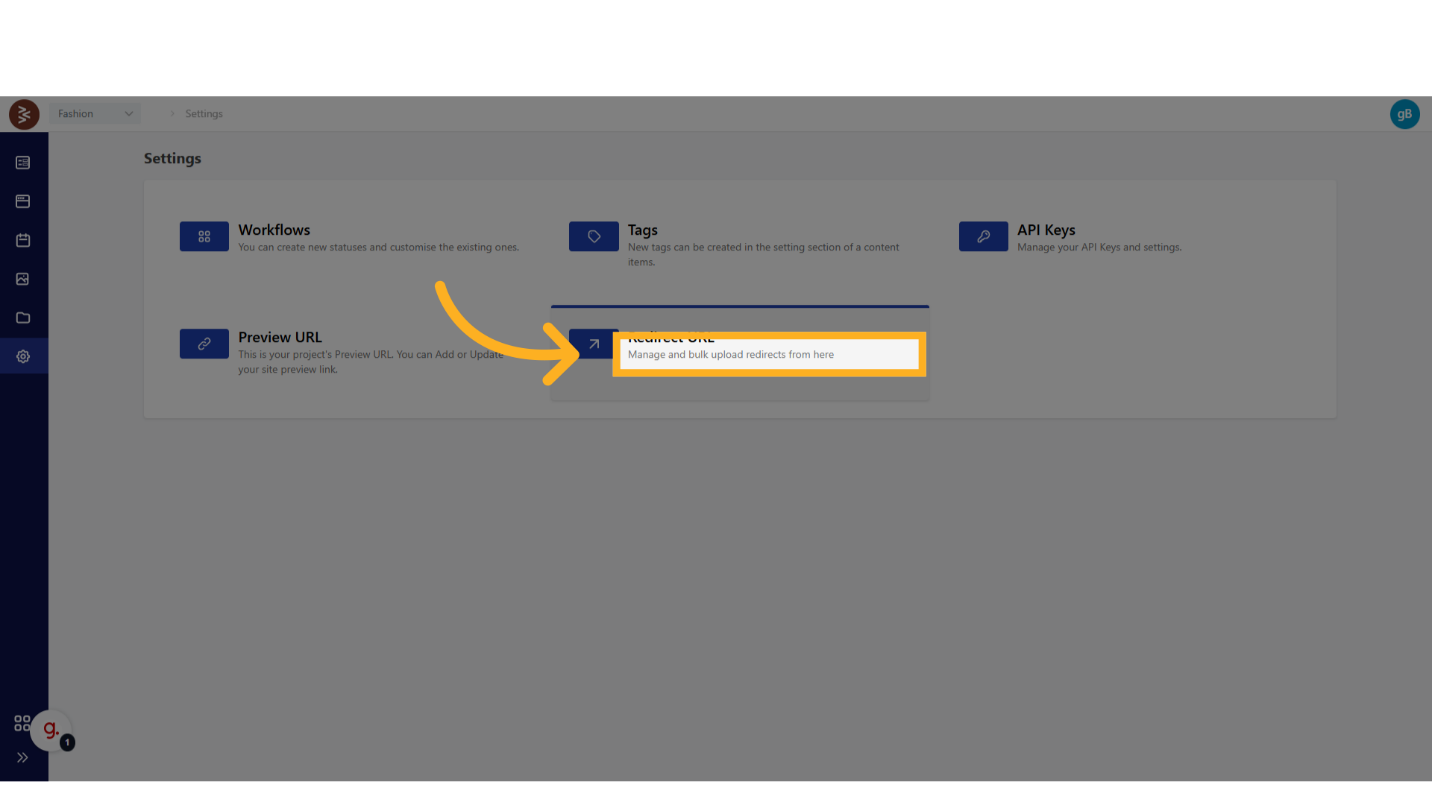
- From the sidebar, navigate to Settings > Redirect URL.
Step 2: View or Create Redirects
- Search Existing Redirects:
- Use the search bar to filter redirects by Source URL, Destination URL, or Redirect Type.
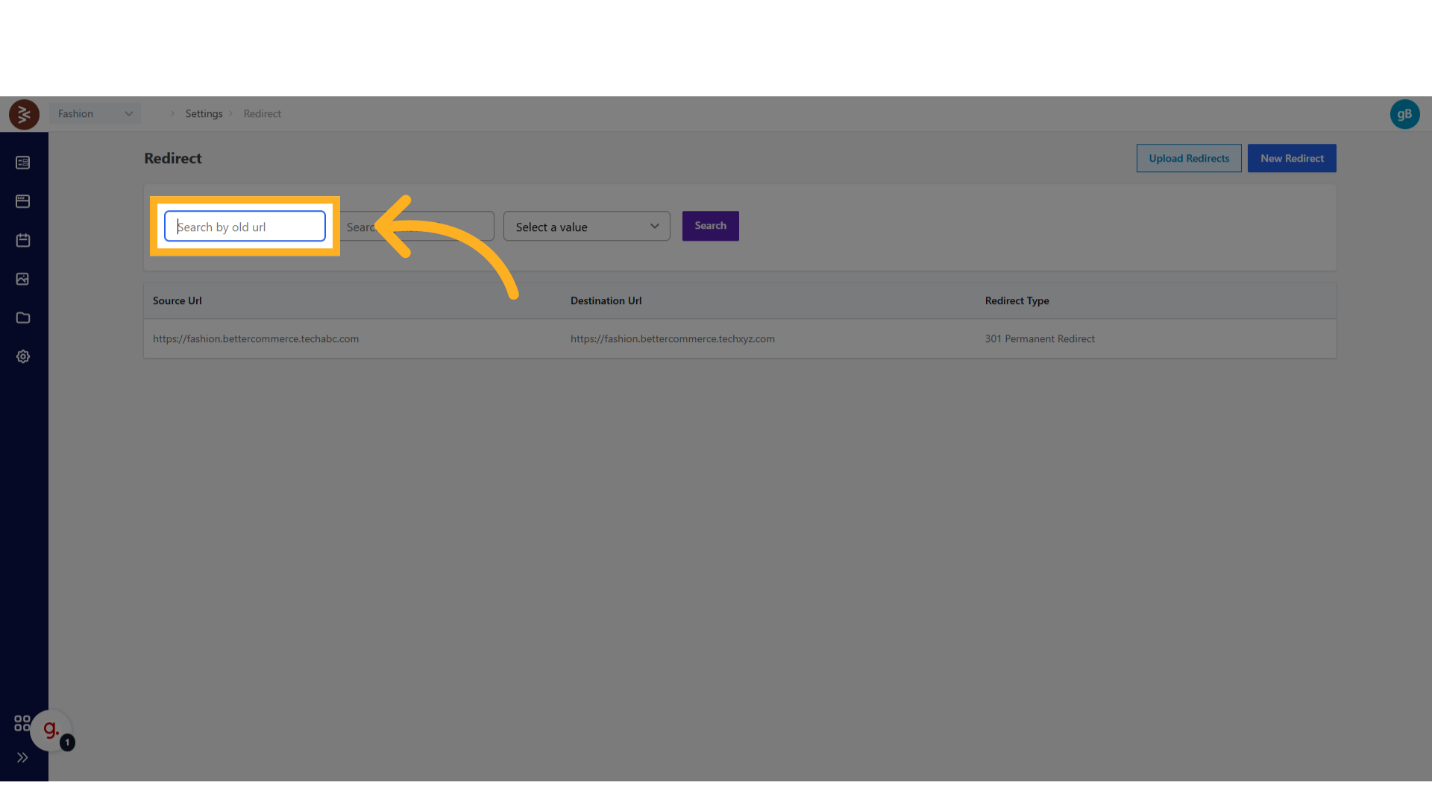
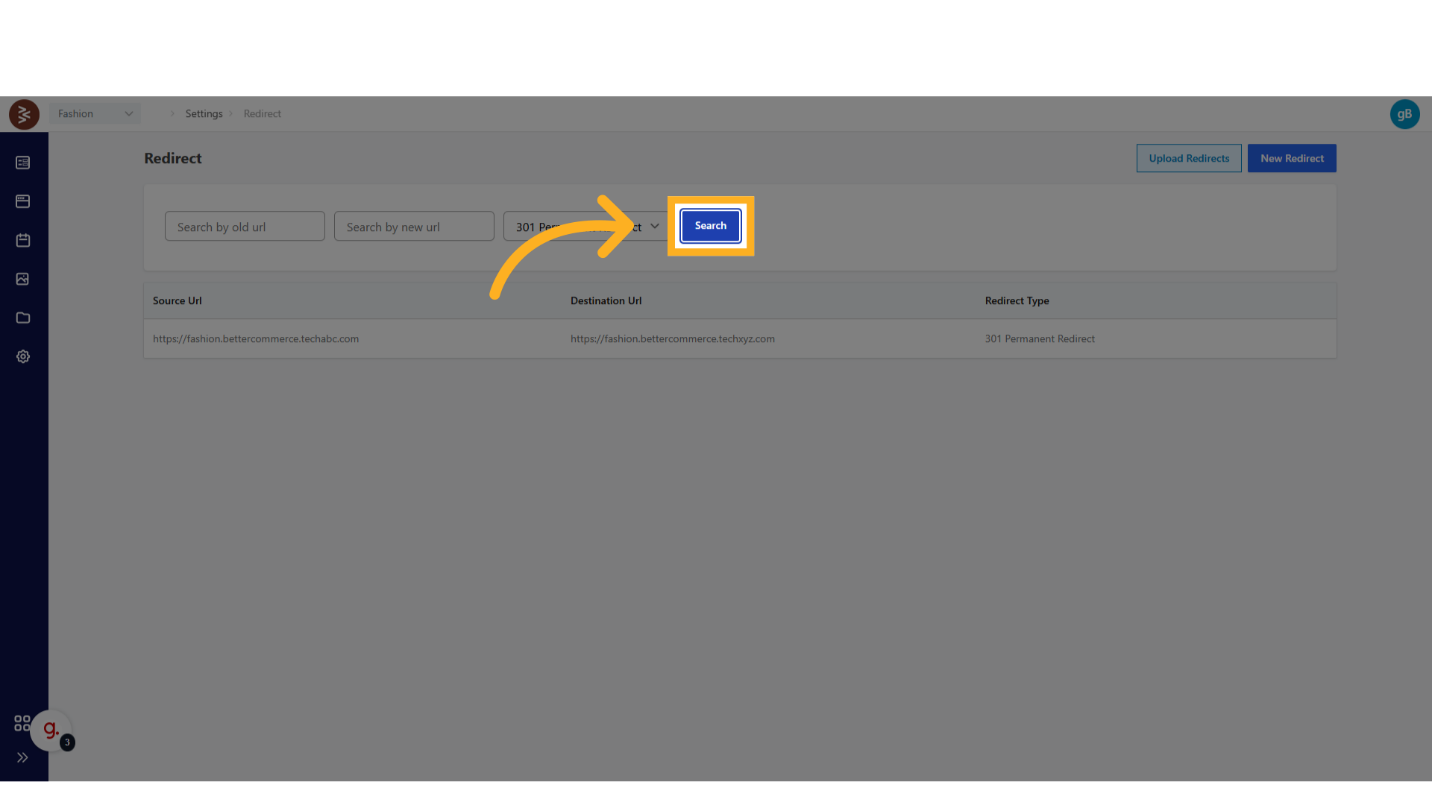
- Use the search bar to filter redirects by Source URL, Destination URL, or Redirect Type.
- Create a New Redirect:
- Click the New Redirect button, typically located at the top-right of the interface.
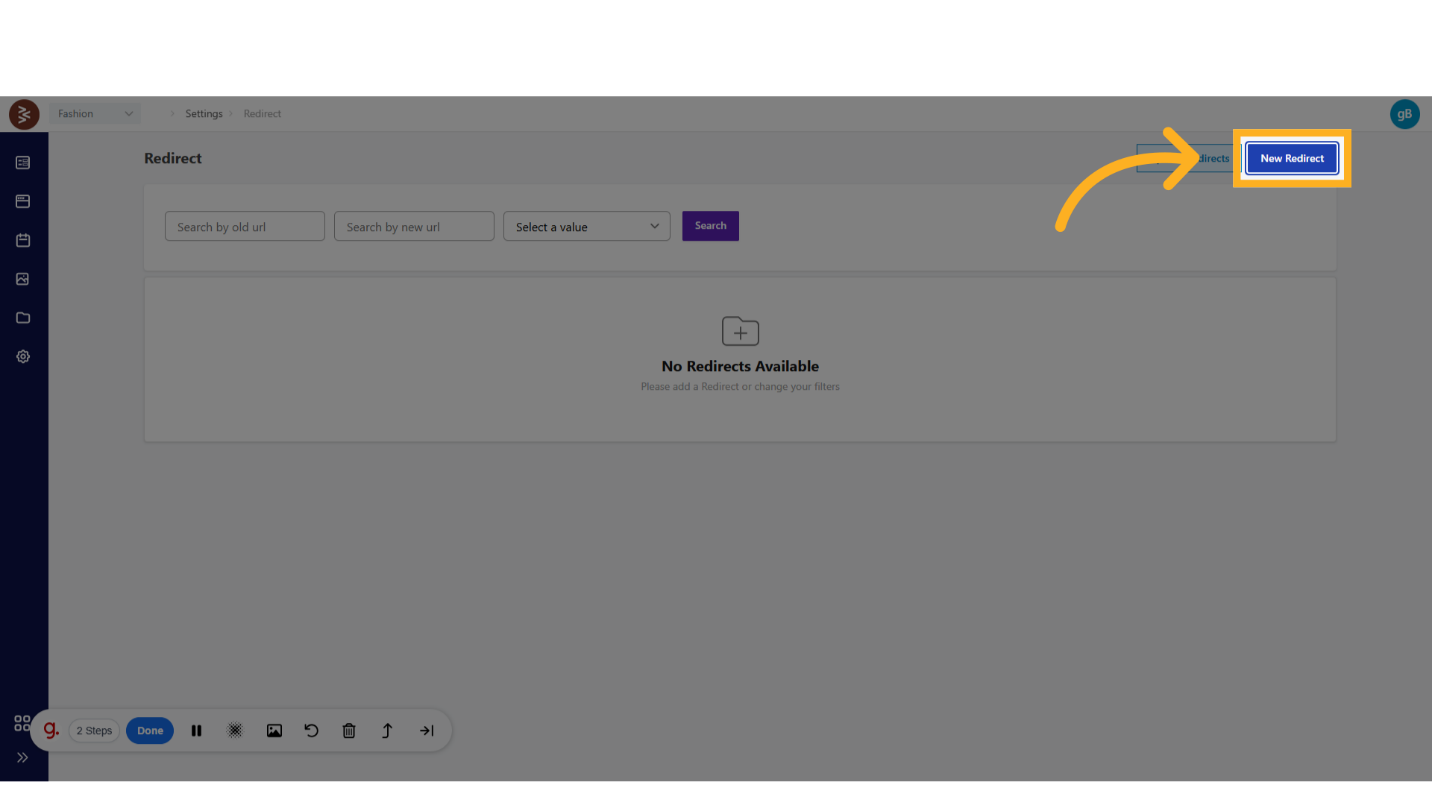
- Click the New Redirect button, typically located at the top-right of the interface.
Step 3: Configure Redirect Details
Complete the redirect form with the following fields:
- Source URL: Enter the original URL. Ensure the URL is relative (no domain) unless specified otherwise.
- Destination URL: Enter the target URL. Supports relative or absolute URLs.
- Redirect Type: Select from a dropdown:
301(Permanent Redirect)302(Temporary Redirect)
Step 4: Import Redirects
Bulk Import via Excel:
-
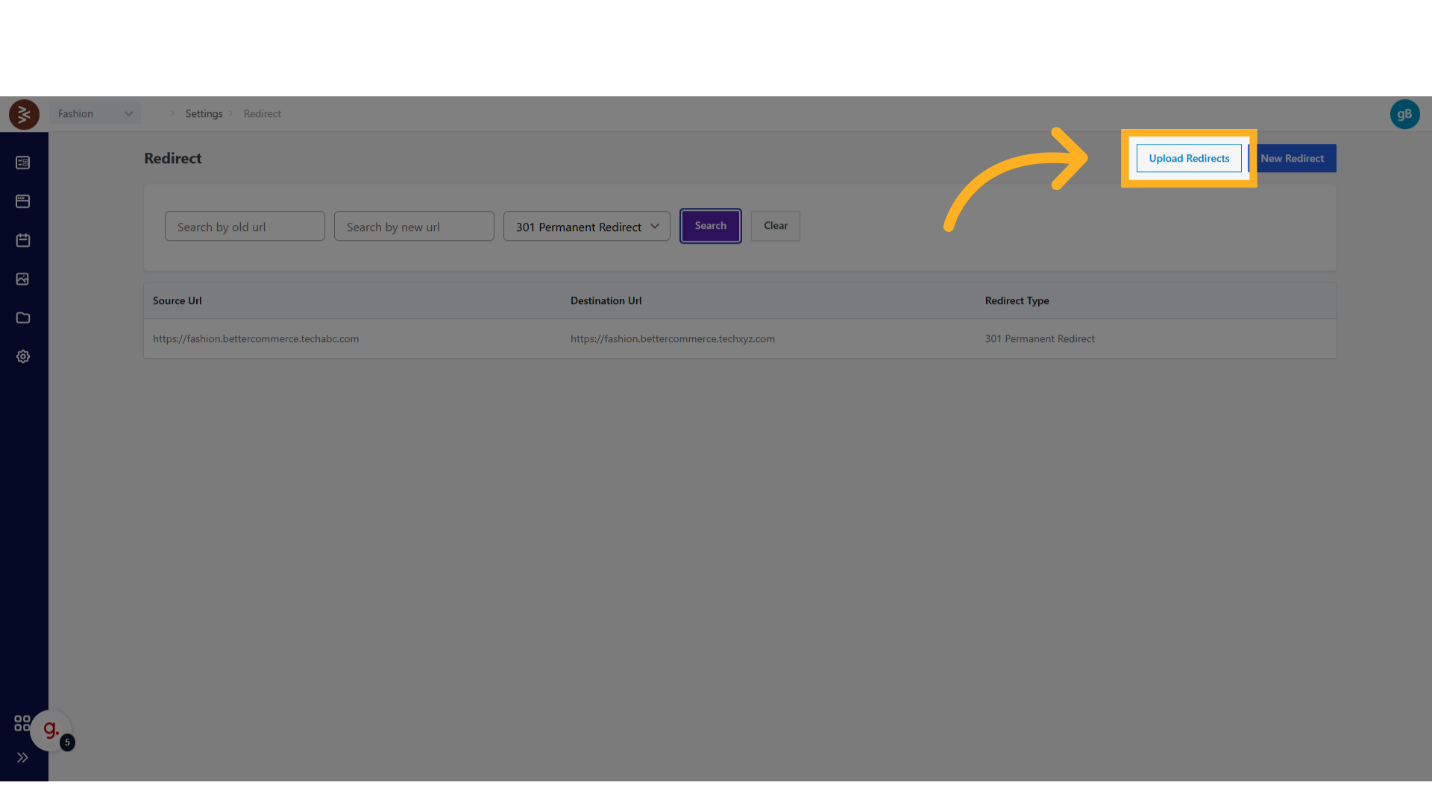
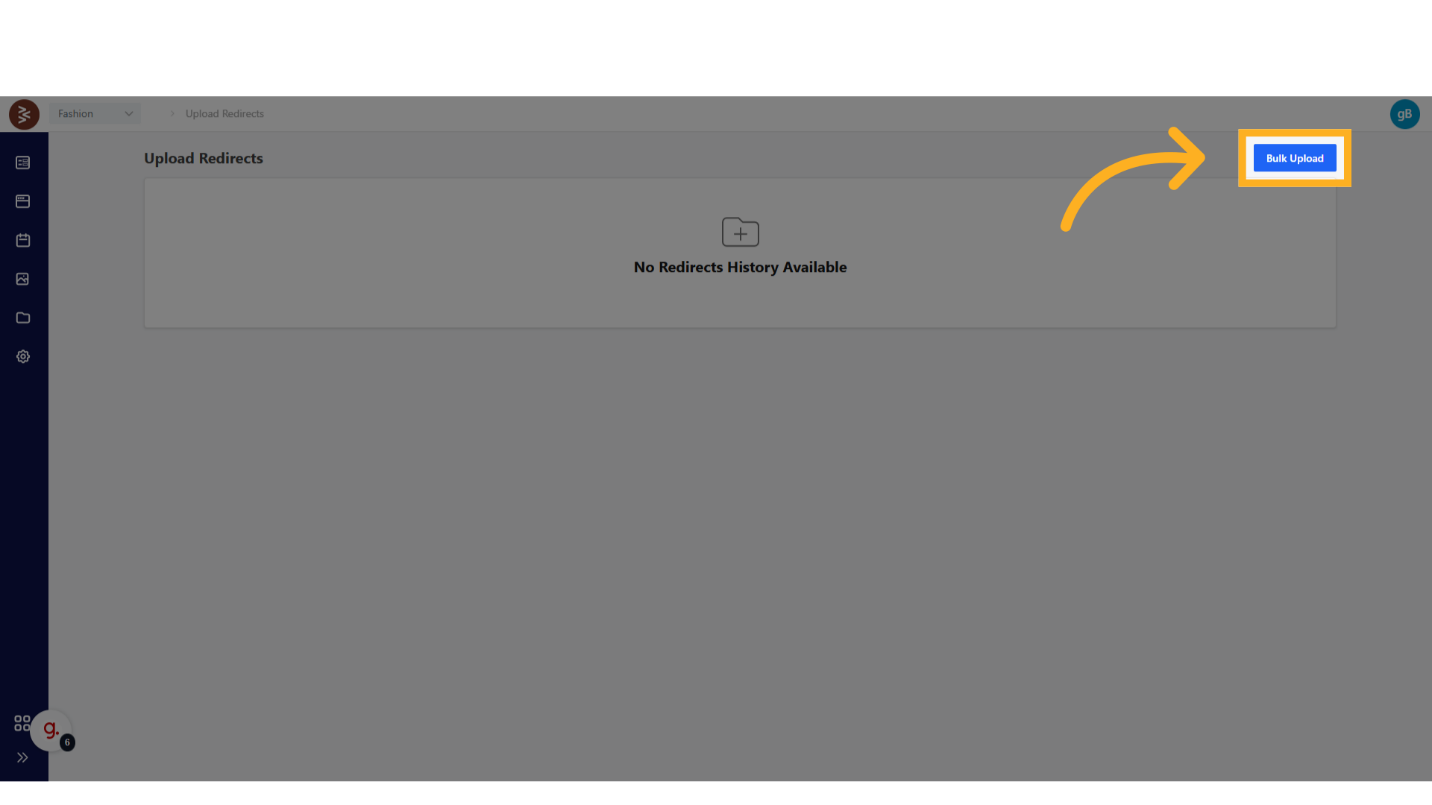
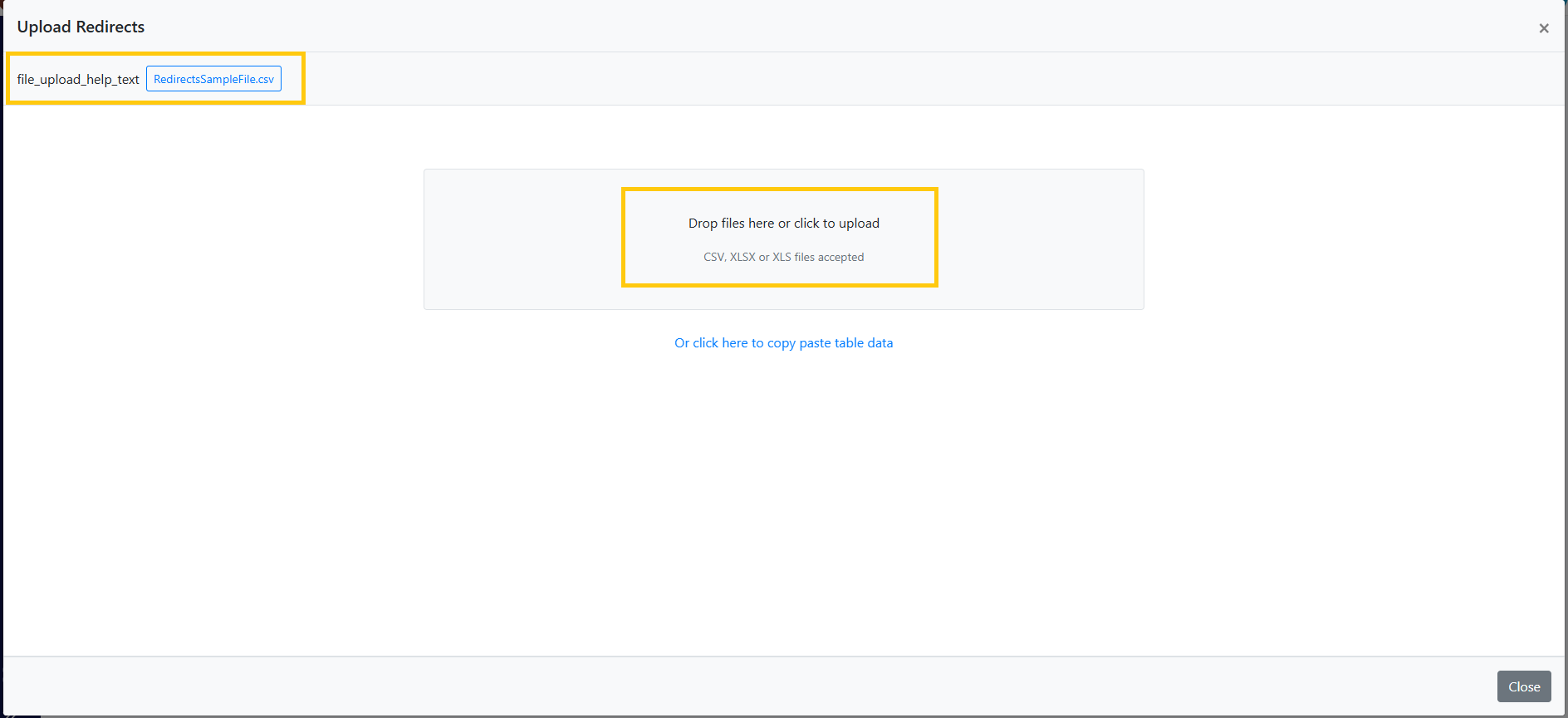
Click the Import Redirects button (if available) to upload an Excel file.
-
Fields (in Excel):
- Source URL: Column for the original URL.
- Destination URL: Column for the target URL.
- Redirect Type: Column specifying
301or302.
Important: Ensure the Excel file matches the platform’s template. Download the template from the Import Redirects interface to avoid formatting errors.
Benefits
Configuring redirects in BetterCommerce provides the following benefits:
- Seamless User Experience: Redirects prevent 404 errors, guiding users to the correct pages.
- SEO Preservation: 301 redirects maintain search engine rankings for permanent URL changes.
- Site Integrity: Proper redirect management ensures consistent navigation and functionality across the storefront.